11/27/12: Updated, after additional testing in which I discovered a second way to copy and paste multiple images.
11/28/12: Updated again, after additional testing in which I discovered a third way to copy and paste multiple images.
On my iPod, skimming through iPad 2: The Missing Manual, which I'd borrowed from the library as a Kindle e-book, I was surprised to discover that in the iOS Photos app, you can copy multiple images and paste them successively into a single e-mail message (or perhaps into any app that can accept them). This copy feature is listed on page 56 of Apple's iPod touch iOS 5 user guide PDF file, but even had I read that file cover to cover, which I did not do, I could easily have missed that. I suspect this capability was also available in iOS 4, as well, or maybe even earlier.
Previously, I would select each image in turn, then send each one as a separate e-mail message using the arrow-emerging-from-rectangle button. It would have been better and clearer for the recipient had all the images been in a single e-mail message, with intermingled explanatory text as appropriate.
Three options:
(1) If you don't already know the entire group of images you want to copy, you can copy one at a time in Camera Roll by using tap-hold on a single image until "Copy" appears. Tap that, switch back to Mail, and paste it into a message wherever you want.
(2) If you know the entire group of images you want to copy (and subsequently explicitly paste), in Camera Roll tap the arrow-emerging-from-rectangle button. Tap on each image you want so that it shows it's been selected with a checkmark in a red circle (tap again to de-select it), then tap the Copy button at the bottom. Switch back to Mail, and paste them all into a message wherever you want. They apparently get pasted in their order in Camera Roll, not the order in which you selected them.
(3) If you know the entire group of images you want to mail directly from the Camera Roll, tap the arrow-emerging-from-rectangle button. Tap on each image you want so that it shows it's been selected with a checkmark in a red circle (tap again to de-select it), then tap the Share button at the bottom. Tap the Email button (Message [for iMessages] and Print are also options). Mail capability will be invoked, with the images copied into the message area in their Camera Roll order.
(1) and (2) may come in most handy if you have already started writing an e-mail message and only later realize you want to paste in one or more images.
I tend not to work with images much; perhaps all the above is common knowledge for people who work with images frequently.
Apparently iOS 6 allows direct inclusion of photos or video into e-mail messages, presumably without having to leave the Mail app, obviating the need to switch between it and the Photos app. However, primarily due to iOS 6's loss of the ability to display the entirety of the text of a podcast's description (which I mentioned here), I will be sticking with iOS 5 for as long as I possibly can.
Showing posts with label e-books. Show all posts
Showing posts with label e-books. Show all posts
Monday, November 26, 2012


Saturday, May 12, 2012
e+ Chess Books: chess e-book reader
The (free) e+ Chess Books (version 1.2.0) is a superlative reader app for chess e-books, allowing you to play through games/positions, in addition to simply displaying book text. Almost all the tasks which are "troublesome" (to varying degrees) when working through a printed chess book have been elegantly and efficiently implemented for landscape orientation use of the small screen of an iPod (or iPhone). All the images below are from the included e+Chess User Guide.
The text, including diagrams, of the e-book is on the left half of the screen, while a chessboard is on the right. The current move is identified in both halves of the screen as you progress through a game (e.g., we are right before Black's 15th move in the chessboard below). You can read backward or forward (e.g., by using the swipe action) through the left half text without affecting the right half (although tapping on a move in the text will update the right half). You can change the size of the left half text, but I found the default size acceptable. Some of the pieces in the figurine algebraic notation are a bit fuzzy, but that is a minor distraction.

Chess books typically include sequences of hypothetical moves ("annotations", discussing what things would be like if the players had played moves different from those moves played in the actual game). e+ Chess Books allows you to choose between playing through only the game's actual moves (the < and > buttons), or through all moves, including those in annotations (the <T and T> buttons; T for Text, presumably). You can freely switch between these two ways of going backward or forward.
If you have moved into annotations, the < and > buttons will advance you through those moves, but halt at the end of those particular annotations (perhaps to indicate that you may have inadvertently moved into the annotations?). If you go backward using the < button beyond the beginning of those annotations, you cannot re-enter the annotations by going forward with the > button.
To go directly to actual game/position moves or annotation moves, tap on the desired move in the left side text. This automatic update of the right side chessboard eliminates the chore of manually resetting pieces on a physical chessboard, no matter which moves you're reviewing.
For chessboard positions presented as puzzles/exercises to be solved, a Solution button is provided, concealing the solution moves until you are ready to see them.
Before the Solution button has been pressed:

After the Solution button has been pressed, and having proceeded to Black's hypothetical 34th move:

The developers took the initiative to improve the way example positions could be presented. In a print book, example positions are accompanied by moves explaining correct play. In e+ Chess Books, such examples can be converted into a puzzle, but instead of a Solution button, a Reveal button would be used (not shown here). This approach affords more opportunity to think about a position without immediately reading a discussion of possible moves. I have yet to see one of these myself, but I imagine such example-puzzles converted from print books might not read totally naturally, since the author's original writing would not have included provisions for same. However, you can always tell from each diagram in the text, or from the right side chessboard, whose turn it is to move (the accompanying little circle is hollow for White to move, solid for Black to move). I imagine two diagrams and slightly modified text may be needed in an e-book if the corresponding print book's diagram caption is "Black to move and draw; White to move and win", at least if a Reveal button is used.
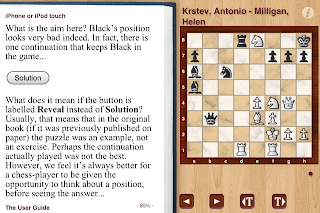
This app does not currently allow you to add bookmarks or notes. Even without those capabilities, this app remains even better than what I imagined as a well-designed chess e-book reader, such as touched on by myself and others in this Amazon book review comment thread.
A figurine algebraic notation version of the out-of-copyright Chess Fundamentals written by former World Chess Champion José Raúl Capablanca is free to download within the app. This is the first free e-book version of that which I found whose move notation has been modernized from the original descriptive notation, and that is a welcome sight indeed. My previous investigations into using other e-book readers (ones not specialized for chess) for Chess Fundamentals were interesting experiences, but I will be using the e+ Chess Books app from now on while working through that book. Since getting it in e-book format several months back (prior to discovering this e+ Chess Books app), I've probably worked through more of its material than I had during the 20 or so years I've owned the print edition.
If you use the same Apple ID for multiple iOS devices, the folks at e+ Chess Books have informed me that purchased e-books can be shared without additional cost by using the Restore All button. To check on something for this blog entry, I deleted this app then reinstalled it over wireless, and re-downloaded Chess Fundamentals. The left half text was oddly blank until I used the Restore All button, but it's behaving normally now. Subsequent communication with them indicated that the text half of the screen going blank was caused by a lack of RAM, which typically affects older/smaller iOS devices -- the iPad 2 and "the new iPad" (3rd generation) are probably immune to this problem. Their recommendation was to use the Reset button in Options. Restore All fixed it, but was not the most direct solution.
As of 5/12/12, there are eight "activated" (put into the app-specific e-book format) chess e-books available for purchase. I look forward to more titles being released; even some print books I already own would be worth buying again for use with this app.
This app looks even better on an iPad with its much larger screen area, but the developers made stellar design decisions for the small screen of the iPod/iPhone. Their only practical competitor that I know of is Chess Viewer (version 2) from the Everyman Chess publishing company; that app will of course serve as the delivery avenue for Everyman Chess books. However, on an iPod/iPhone, that Chess Viewer app can at one time only display EITHER the chessboard accompanied by two move pairs OR the book text; you cannot see both simultaneously.
The text, including diagrams, of the e-book is on the left half of the screen, while a chessboard is on the right. The current move is identified in both halves of the screen as you progress through a game (e.g., we are right before Black's 15th move in the chessboard below). You can read backward or forward (e.g., by using the swipe action) through the left half text without affecting the right half (although tapping on a move in the text will update the right half). You can change the size of the left half text, but I found the default size acceptable. Some of the pieces in the figurine algebraic notation are a bit fuzzy, but that is a minor distraction.

Chess books typically include sequences of hypothetical moves ("annotations", discussing what things would be like if the players had played moves different from those moves played in the actual game). e+ Chess Books allows you to choose between playing through only the game's actual moves (the < and > buttons), or through all moves, including those in annotations (the <T and T> buttons; T for Text, presumably). You can freely switch between these two ways of going backward or forward.
If you have moved into annotations, the < and > buttons will advance you through those moves, but halt at the end of those particular annotations (perhaps to indicate that you may have inadvertently moved into the annotations?). If you go backward using the < button beyond the beginning of those annotations, you cannot re-enter the annotations by going forward with the > button.
To go directly to actual game/position moves or annotation moves, tap on the desired move in the left side text. This automatic update of the right side chessboard eliminates the chore of manually resetting pieces on a physical chessboard, no matter which moves you're reviewing.
For chessboard positions presented as puzzles/exercises to be solved, a Solution button is provided, concealing the solution moves until you are ready to see them.
Before the Solution button has been pressed:

After the Solution button has been pressed, and having proceeded to Black's hypothetical 34th move:

The developers took the initiative to improve the way example positions could be presented. In a print book, example positions are accompanied by moves explaining correct play. In e+ Chess Books, such examples can be converted into a puzzle, but instead of a Solution button, a Reveal button would be used (not shown here). This approach affords more opportunity to think about a position without immediately reading a discussion of possible moves. I have yet to see one of these myself, but I imagine such example-puzzles converted from print books might not read totally naturally, since the author's original writing would not have included provisions for same. However, you can always tell from each diagram in the text, or from the right side chessboard, whose turn it is to move (the accompanying little circle is hollow for White to move, solid for Black to move). I imagine two diagrams and slightly modified text may be needed in an e-book if the corresponding print book's diagram caption is "Black to move and draw; White to move and win", at least if a Reveal button is used.

This app does not currently allow you to add bookmarks or notes. Even without those capabilities, this app remains even better than what I imagined as a well-designed chess e-book reader, such as touched on by myself and others in this Amazon book review comment thread.
A figurine algebraic notation version of the out-of-copyright Chess Fundamentals written by former World Chess Champion José Raúl Capablanca is free to download within the app. This is the first free e-book version of that which I found whose move notation has been modernized from the original descriptive notation, and that is a welcome sight indeed. My previous investigations into using other e-book readers (ones not specialized for chess) for Chess Fundamentals were interesting experiences, but I will be using the e+ Chess Books app from now on while working through that book. Since getting it in e-book format several months back (prior to discovering this e+ Chess Books app), I've probably worked through more of its material than I had during the 20 or so years I've owned the print edition.
If you use the same Apple ID for multiple iOS devices, the folks at e+ Chess Books have informed me that purchased e-books can be shared without additional cost by using the Restore All button. To check on something for this blog entry, I deleted this app then reinstalled it over wireless, and re-downloaded Chess Fundamentals. The left half text was oddly blank until I used the Restore All button, but it's behaving normally now. Subsequent communication with them indicated that the text half of the screen going blank was caused by a lack of RAM, which typically affects older/smaller iOS devices -- the iPad 2 and "the new iPad" (3rd generation) are probably immune to this problem. Their recommendation was to use the Reset button in Options. Restore All fixed it, but was not the most direct solution.
As of 5/12/12, there are eight "activated" (put into the app-specific e-book format) chess e-books available for purchase. I look forward to more titles being released; even some print books I already own would be worth buying again for use with this app.
This app looks even better on an iPad with its much larger screen area, but the developers made stellar design decisions for the small screen of the iPod/iPhone. Their only practical competitor that I know of is Chess Viewer (version 2) from the Everyman Chess publishing company; that app will of course serve as the delivery avenue for Everyman Chess books. However, on an iPod/iPhone, that Chess Viewer app can at one time only display EITHER the chessboard accompanied by two move pairs OR the book text; you cannot see both simultaneously.
Saturday, March 17, 2012
Apps useful for my trip to London

Recently I traveled to London. I am not much of a photographer, neither in frequency of shots taken, nor, as many will rightly say, in quality of shots, but having the 4th generation iPod Touch with its camera led me to take some shots, like this one of the Big Ben Clock Tower.
In preparation for the trip, I created a (free) Google Voice account which would be able to call U.S. (and Canada, I believe) numbers for free until the end of
I loaded up some additional free apps for the trip, listed below in approximate order of usefulness. Some of them would have been more useful, except I had alternate, more helpful, resources, which I will also mention.
- London: Travel Guide - Time Out has assorted information about London. I did browse this a bit, but it was of minimal use to me because I had the good luck to borrow from the library the (more useful) 2010 Kindle e-book of Time Out London, which I consulted instead. I also had several similarly recent, printed London travel materials on loan from a friend.
- Brighton Museums was good for £1 off entry to the Royal Pavilion in Brighton (about an hour by train from London). It has photos and brief information about the Royal Pavilion and other attractions, but its primary benefit to me was the discount.
- Tube Map has, in addition to a map of the London Underground ("the Tube"), a Lines button which shows up-to-date information by subway line, e.g., "Good service", "Planned closure", "Part closure", "Line issue" (all of which I am seeing as I write this entry). A small popup window may show periodically on the map with Tube alert-type information; I'm not sure if that overlaps with the Lines information. The Tube Map app's buttons, advertising, and alerts naturally take up part of the iPod's precious screen space. With hindsight I should have checked the Lines status each day before leaving the hotel (or leaving anywhere else I had WiFi), but I did not run into any meaningful Tube schedule disruptions (and at various stations I did learn in person of some minor scheduled service changes which were part of preparation for the coming Summer Olympics). I had also loaded a PDF of the London Tube map (which I'd found using Google) onto the Dropbox app and saved it as a Favorite therein so that it would be available without WiFi access. That was my real Tube resource, and was extremely useful both for scoping out trips in advance and while on a train. In the most extreme situations, when riding with only one hand free, it was still easy to use spread-to-zoom and swipe motions to confirm that I was on the proper train, which easily beat doing so using a clumsy folding map with tiny print.
(3/21/12: With their 4.1 update, the makers of this app have added integration with their Bus London app, of which I just learned, and could have been handy for the Tate Britain museum, which is a bit of a walk from the nearest Tube station. Supposedly within the Tube Map app, you can now find bus departures around a Tube station.) - Hidden London contains photos and information about some less well-known attractions. Although I had mentally noted some of those attractions before the trip, in the end it was only by accident that I happened to walk by one (the Cartoon Museum) and actually went to one (the Cafe at Tate Britain). Regarding the latter, I had gotten confused about museums and went to the Tate Britain instead of the Tate Modern, but as this app notes, this "little know[n] excellent cafe hides in the basement of this grand art gallery. Open daily, the cafe serves amazing cakes, snacks and a range of tea and coffee." The cafe truly was excellent!
- ExCel London provides some general information, including food availability, about the convention site, which would presumably only be of interest if you are attending an event there.
- i-Shop has some information about possible discounts or tax refunds from selected shops. I did see the Global Blue symbol (Global Blue is either the producer or somehow related to this app) inside the Tower of London gift shop, but I did not buy enough stuff to make serious investigation of this app worthwhile.
In addition to the Time Out London e-book mentioned above, I also borrowed a recreational reading e-book from the library before the trip. Library e-books "return" themselves, so you never need to worry about them (unlike the half-read physical book which I had to return to the library on my last night in the U.S. during last minute trip preparations!). I also bought an e-book for the Kindle app, so was well stocked with reading material.
The Notespark app, which I originally wrote about here, facilitated organizing London topics and a daily schedule. I used a particular Tag for all London notes, and starred all of those notes. Most of the time I would just work with the group of Starred notes. I also dedicated a single note for each day's potential agenda, an agenda which often went through revisions. When the contents of any note were no longer relevant for the remaining days of my trip (although I expected to revisit all London notes after the trip), I unstarred that note so that it would no longer be visual clutter. I could use Notespark to search through whichever group of notes was more relevant, the Starred ones, or the group associated with the Tag which I used for this London trip.
When I had WiFi access both before and during the trip, I saved static copies of a number of London-related web pages, e.g., for various tourist attractions and travel tips, using the Opera Mini browser (about which I wrote most recently here). I'll admit that despite getting a bunch of information in advance about Oyster Cards and Travel Cards (both of which are options, pointedly not mutually exclusive, for using the Tube and some other transportation systems), it wasn't until pretty late in the trip that I felt I really got a fuller understanding of them.
Wednesday, February 8, 2012
ShuBook e-book reader app mostly shines with Chess Fundamentals ePub e-book
5/12/12: The relatively new e+ Chess Books app provides a far superior iPod reading experience for Chess Fundamentals than does any other e-book reader. I am leaving this blog entry here primarily for historical perspective.
I wrote my first blog entry on e-book reader apps back when I was using iOS 4. Under iOS 5, I observed loss of functionality in some e-book reader apps. I installed ShuBook as a potential substitute for Stanza, which initially fatally crashed under iOS 5 (though a final Stanza upgrade was eventually released, which worked under iOS 5).
Each e-book reader app has its advantages and disadvantages. Developers make different decisions about how to render elements of an ePub book, which will be very clear in the examples below. Under iOS 5.0.1, ShuBook 1.4.2 (an older version, to which I'm sticking for now) mostly does a nice job rendering the public domain e-book of Chess Fundamentals, written by World Chess Champion José Raúl Capablanca. The up-to-date version of ShuBook may very well display this e-book in the exact same fashion, but I have no plans to test that.
Amazon sells several Kindle versions of this freely available e-book, but perhaps they added meaningful value in some way to the Kindle editions. I downloaded mine for free using OverDrive to connect to my library's website, which had a link to public domain books. I opened the e-book successively in Stanza, iBooks, ShuBook, and OverDrive. I initially had a problem with OverDrive, but deleting the app and downloading it again got it working again.
The print book has embedded chess diagrams, an example of which is shown here:

Both Stanza and iBooks simply mimic the original book's placement of those diagrams, though they use surprisingly small diagram images:


My (22nd edition) print book's page is around 4 times the size of the iPod screen. As is clear above, on the iPod it is not so easy to see those diagrams, which were of poor quality even in the print book.
OverDrive puts each diagram on an entire page, but squished to the degree of being essentially useless:

ShuBook (Shū is the Pinyin spelling for the Chinese word for book) also presents each diagram as an entire page image, but done the way it should be (which may help the reader focus on evaluating the position without "peeking" ahead at the explanation). To enhance the text, I used these settings, which I think are all changes from the defaults:
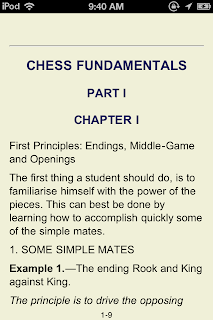


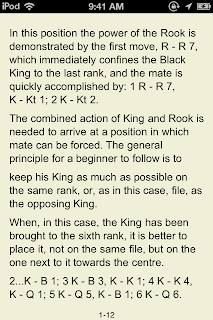
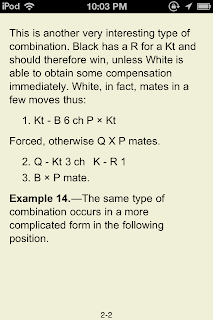
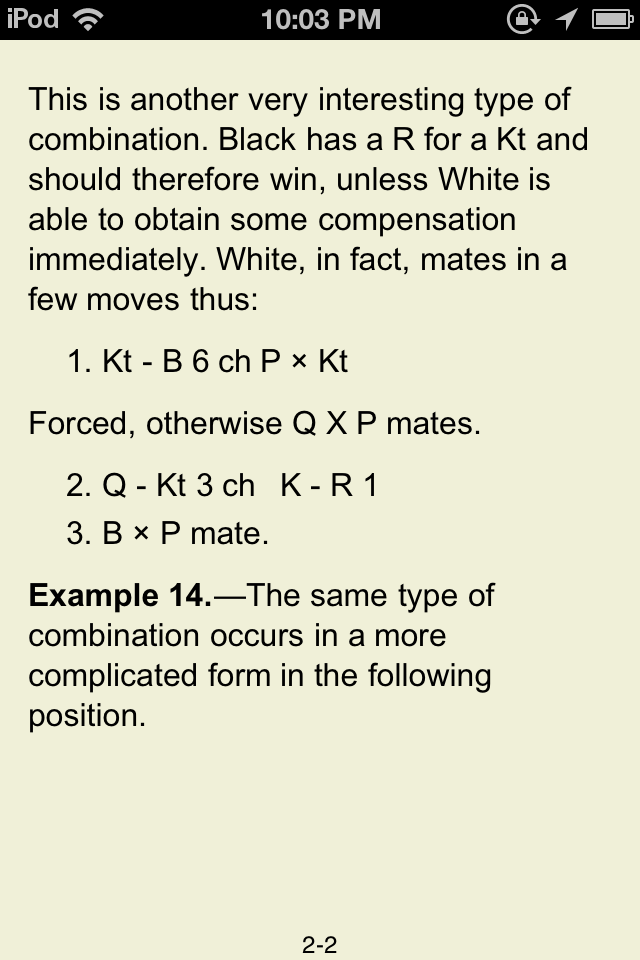
I was disappointed, however, to discover that ShuBook lost some text right after the Example 14 diagram, which would appear to be a direct consequence of its superior handling of images. The text is complete in ShuBook on the iPad (4/7/12: in portrait orientation only), where this e-book is even more of a pleasure to read with the larger screen size, but this blog's focus remains the iPod Touch.
Here are Stanza, iBooks, and OverDrive properly rendering the moves:


Now, here is ShuBook missing the moves "1. BxKt QxB.":


For the time being I will keep a copy of the e-book in all 4 of these apps, and intend to continue documenting other differences I find.
Shubook may be similarly helpful for other ePub format e-books having similarly small images embedded between text, though there is an apparent risk of losing some text.
No e-book reader, of course, will ever suffer from show-through of text on the other side of a printed page!
(...unless they are simply displaying scanned images of a print book, that is.)
I wrote my first blog entry on e-book reader apps back when I was using iOS 4. Under iOS 5, I observed loss of functionality in some e-book reader apps. I installed ShuBook as a potential substitute for Stanza, which initially fatally crashed under iOS 5 (though a final Stanza upgrade was eventually released, which worked under iOS 5).
Each e-book reader app has its advantages and disadvantages. Developers make different decisions about how to render elements of an ePub book, which will be very clear in the examples below. Under iOS 5.0.1, ShuBook 1.4.2 (an older version, to which I'm sticking for now) mostly does a nice job rendering the public domain e-book of Chess Fundamentals, written by World Chess Champion José Raúl Capablanca. The up-to-date version of ShuBook may very well display this e-book in the exact same fashion, but I have no plans to test that.
Amazon sells several Kindle versions of this freely available e-book, but perhaps they added meaningful value in some way to the Kindle editions. I downloaded mine for free using OverDrive to connect to my library's website, which had a link to public domain books. I opened the e-book successively in Stanza, iBooks, ShuBook, and OverDrive. I initially had a problem with OverDrive, but deleting the app and downloading it again got it working again.
The print book has embedded chess diagrams, an example of which is shown here:

Both Stanza and iBooks simply mimic the original book's placement of those diagrams, though they use surprisingly small diagram images:


My (22nd edition) print book's page is around 4 times the size of the iPod screen. As is clear above, on the iPod it is not so easy to see those diagrams, which were of poor quality even in the print book.
OverDrive puts each diagram on an entire page, but squished to the degree of being essentially useless:

ShuBook (Shū is the Pinyin spelling for the Chinese word for book) also presents each diagram as an entire page image, but done the way it should be (which may help the reader focus on evaluating the position without "peeking" ahead at the explanation). To enhance the text, I used these settings, which I think are all changes from the defaults:
- Font Name: Arial, which is sans serif, feels easier to read given that I also use:
- Font Size: extra small
- Text Alignment: left (justify works badly for many of the chess moves in the text on the iPod)


I was disappointed, however, to discover that ShuBook lost some text right after the Example 14 diagram, which would appear to be a direct consequence of its superior handling of images. The text is complete in ShuBook on the iPad (4/7/12: in portrait orientation only), where this e-book is even more of a pleasure to read with the larger screen size, but this blog's focus remains the iPod Touch.
Here are Stanza, iBooks, and OverDrive properly rendering the moves:


Now, here is ShuBook missing the moves "1. BxKt QxB.":


For the time being I will keep a copy of the e-book in all 4 of these apps, and intend to continue documenting other differences I find.
Shubook may be similarly helpful for other ePub format e-books having similarly small images embedded between text, though there is an apparent risk of losing some text.
No e-book reader, of course, will ever suffer from show-through of text on the other side of a printed page!
(...unless they are simply displaying scanned images of a print book, that is.)
Thursday, November 24, 2011
Kindle app can download free English(-English), French-French, and Spanish-Spanish dictionaries
The free Amazon Kindle app can download free English(-English), French-French, and Spanish-Spanish dictionaries. While the intention was clearly to enhance the reading experience, you can open the Kindle app, select a word, then click on Full Definition to make general use of any of your downloaded dictionaries as an e-book itself.
The Kindle app is apparently aware of the primary language associated with an e-book; it's likely mandatory, or at least highly advisable, that producers of e-books include that piece of information. If you select a word and have previously downloaded the dictionary matching the e-book's primary language, the Kindle app will show the definition in a pop-up window. It will offer you the chance to download the dictionary if such doesn't exist on your device; click on the i in a circle icon to select from the different dictionaries.
From Amazon, I downloaded the free Voyage au Centre de la Terre (Journey to the Center of the Earth) as a French language e-book when writing this entry. Perhaps I will even attempt to read it some day (I loved that Saturday morning cartoon), but it can at least serve as an e-book through which to get directly to the French-French dictionary.

I had used my usual Pitman's Commercial Spanish Grammar to select a Spanish word when writing this entry, but that e-book's primary language is actually English. My Spanish being far less complete than my French, I would need to select some basic Spanish e-book to sustain even a glimmer of a chance that I might someday read it, although any Spanish language e-book would serve to get directly to the Spanish-Spanish dictionary.
As of 11/24/11, the other language dictionaries are:
The Kindle app is apparently aware of the primary language associated with an e-book; it's likely mandatory, or at least highly advisable, that producers of e-books include that piece of information. If you select a word and have previously downloaded the dictionary matching the e-book's primary language, the Kindle app will show the definition in a pop-up window. It will offer you the chance to download the dictionary if such doesn't exist on your device; click on the i in a circle icon to select from the different dictionaries.
From Amazon, I downloaded the free Voyage au Centre de la Terre (Journey to the Center of the Earth) as a French language e-book when writing this entry. Perhaps I will even attempt to read it some day (I loved that Saturday morning cartoon), but it can at least serve as an e-book through which to get directly to the French-French dictionary.

I had used my usual Pitman's Commercial Spanish Grammar to select a Spanish word when writing this entry, but that e-book's primary language is actually English. My Spanish being far less complete than my French, I would need to select some basic Spanish e-book to sustain even a glimmer of a chance that I might someday read it, although any Spanish language e-book would serve to get directly to the Spanish-Spanish dictionary.
As of 11/24/11, the other language dictionaries are:
- Deutsch
- English (UK)
- Italiano
- Português
Friday, November 18, 2011
Crash landing on iOS 5.0.1
I had not been planning to upgrade my 3rd generation iPod from iOS 4.3.5 to iOS 5, having been happy with its capabilities as is. I had also learned of, and/or experienced, a number of problems associated with iOS 5. Typically, iOS 5 either broke an existing app, or an app's functionality worsened when the developers updated it to accommodate iOS 5.
I've mentioned on multiple occasions how my iPod has a hardware port problem. Aligning its cord properly to charge can take a few minutes of fiddling, and properly aligning it for a PC iTunes connection is even more demanding. In those delicate alignment attempts, "Charging is not supported with this accessory" is a message I've periodically seen for more than two months. That message came up again yesterday as I was trying to get it to charge, and when I tried to lower the brightness...bam, it was totally hosed. The screen displayed only the iTunes icon and a picture of a USB cord, as shows up when you activate a pre-iOS 5 iPod, which requires a wired connection to Mac/PC iTunes.
After several hours of work, including numerous error messages and laborious re-seating of the cable at multiple junctures, my iPod is now at iOS 5.0.1. I mistakenly thought that I would be able to restore from my less than two week old PC iTunes backup and remain on iOS 4.3.5. However, it seems that PC iTunes only allows loading of the most recent iOS version that works for your device -- not unreasonable. At least I was able to get back my 102 apps from PC iTunes in a single operation.
Backing up to iCloud should reduce my cable alignment problems to only recharging the iPod, since I should be able to restore over wireless from now on.
I was surprised to discover there was no way to mass-reload my hundreds of French language instruction podcasts, but I have started rebuilding my collection manually. (2/9/11: Actually, I could have used PC iTunes to copy over all that I had previously synced.)
I was also surprised that my small number of not-particularly-important photos did not come back. I have seen a few web articles suggesting ways to get them back, and I may yet pursue that. If I do, I will try to report the result here later.
The Traditional Chinese handwriting recognition seems tangibly slower, both on a 3rd generation and on a 4th generation iPod, than it was on a 3rd generation iPod running iOS 4.3.5.
(12/2/14: When only a single app [Notespark, as a device-local-only scratchpad] is in RAM, the speed of recognition is quite good, possibly similar to the speed under iOS 4.3.5. I'm surprised that I didn't think of testing this approach previously. Of course, it's inconvenient to eject all the other apps from RAM, but in some cases it's worth doing; when I'm done handwriting the Chinese text, I can Select All and copy it elsewhere as desired.)
As I worked to recreate groups of apps and reassemble my desired first Home Screen ("springboard"), I seem to have moved some app icons so quickly that the iOS became confused. For a while the icons of some random apps (no more than one per screen, I think) became invisible, although their titles remained visible. With all the icons jiggling and me swiping screens left to right and right to left, the app which was invisible would sometimes change (i.e., an invisible one would become visible, but a different app on the same screen would become invisible instead). I found it was possible to drag an invisible app onto a visible one to create a group, but not vice versa. That invisibility problem eventually cleared up, so everything is visible now.
Although Apple tried to disallow moving the new Newsstand app into a folder and off of the first Home Screen, folks have found out how to do that. I moved it into a folder with Messages and Reminders, two other new apps for which I have no particular need, then moved the folder off the first Home Screen. A Google search for "ios 5 move newsstand to folder" should find assorted pages with the technique, which does require a certain quickness of action.
Below is a list of some of the functionality which I wanted to recover, and commentary on what was involved. I tend not to give my location to apps to use, normally entering that manually when I want (e.g., in The Weather Channel app).
One of the reasons I started this blog was because I had read Sonny Hung's My Apple Newton (PDA) blog, which he introduces as:
I've mentioned on multiple occasions how my iPod has a hardware port problem. Aligning its cord properly to charge can take a few minutes of fiddling, and properly aligning it for a PC iTunes connection is even more demanding. In those delicate alignment attempts, "Charging is not supported with this accessory" is a message I've periodically seen for more than two months. That message came up again yesterday as I was trying to get it to charge, and when I tried to lower the brightness...bam, it was totally hosed. The screen displayed only the iTunes icon and a picture of a USB cord, as shows up when you activate a pre-iOS 5 iPod, which requires a wired connection to Mac/PC iTunes.
After several hours of work, including numerous error messages and laborious re-seating of the cable at multiple junctures, my iPod is now at iOS 5.0.1. I mistakenly thought that I would be able to restore from my less than two week old PC iTunes backup and remain on iOS 4.3.5. However, it seems that PC iTunes only allows loading of the most recent iOS version that works for your device -- not unreasonable. At least I was able to get back my 102 apps from PC iTunes in a single operation.
Backing up to iCloud should reduce my cable alignment problems to only recharging the iPod, since I should be able to restore over wireless from now on.
I was surprised to discover there was no way to mass-reload my hundreds of French language instruction podcasts, but I have started rebuilding my collection manually. (2/9/11: Actually, I could have used PC iTunes to copy over all that I had previously synced.)
I was also surprised that my small number of not-particularly-important photos did not come back. I have seen a few web articles suggesting ways to get them back, and I may yet pursue that. If I do, I will try to report the result here later.
The Traditional Chinese handwriting recognition seems tangibly slower, both on a 3rd generation and on a 4th generation iPod, than it was on a 3rd generation iPod running iOS 4.3.5.
(12/2/14: When only a single app [Notespark, as a device-local-only scratchpad] is in RAM, the speed of recognition is quite good, possibly similar to the speed under iOS 4.3.5. I'm surprised that I didn't think of testing this approach previously. Of course, it's inconvenient to eject all the other apps from RAM, but in some cases it's worth doing; when I'm done handwriting the Chinese text, I can Select All and copy it elsewhere as desired.)
As I worked to recreate groups of apps and reassemble my desired first Home Screen ("springboard"), I seem to have moved some app icons so quickly that the iOS became confused. For a while the icons of some random apps (no more than one per screen, I think) became invisible, although their titles remained visible. With all the icons jiggling and me swiping screens left to right and right to left, the app which was invisible would sometimes change (i.e., an invisible one would become visible, but a different app on the same screen would become invisible instead). I found it was possible to drag an invisible app onto a visible one to create a group, but not vice versa. That invisibility problem eventually cleared up, so everything is visible now.
Although Apple tried to disallow moving the new Newsstand app into a folder and off of the first Home Screen, folks have found out how to do that. I moved it into a folder with Messages and Reminders, two other new apps for which I have no particular need, then moved the folder off the first Home Screen. A Google search for "ios 5 move newsstand to folder" should find assorted pages with the technique, which does require a certain quickness of action.
Below is a list of some of the functionality which I wanted to recover, and commentary on what was involved. I tend not to give my location to apps to use, normally entering that manually when I want (e.g., in The Weather Channel app).
- Calendar (iOS 5.0.1): I use a Google account for Calendar, so it was simple to add that account to the iPod. Although the Day and Month views showed my events, the List view was empty at first, so I feared I would have to create another calendar from scratch (ugh) to restore that functionality. However, the next day the List view showed events normally.
- Contacts (iOS 5.0.1): I use a Google account for Contacts, so again, it was simple to add that account to the iPod.
- Notespark (1.3.2): All my data is already on Metaspark's webserver, so all I had to do was login and tweak a few settings (e.g., font size, etc.), and I was back to pre-crash functionality.
- iCED (3.2.3): I had previously made a Murage account and it was straightforward to download my paid Add-ons again. I made a few tweaks to settings (e.g., maximize History).
- tChess Pro (1.7.1): Much like Notespark, I just had to tweak a few settings to get it to look and behave the way I like it. I normally e-mail myself the pgn of individual games that I play through using tChess Pro, so I can easily reload those. I have also kept files on my PC of pgn collections of games, which I can similarly e-mail myself to reload. (This is one of my most-used apps, so a blog entry on it should eventually appear.)
- Opera Mini (6.0.1 - pointedly not the latest version, which is 6.5.1, which for now I'm holding off on upgrading to): Initially I started recreating my Speed Dial locations manually, and had 8 of the total 9 set up -- I didn't know the 9th one's URL. Then I used Opera Link to restore my (generally-rarely-changed) bookmarks from the last time I saved them, and it loaded the missing 9th Speed Dial location. Apparently I wasted my time loading the first 8 manually.
- Safari (iOS 5.0.1): I was pleased to discover that Apple was apparently already saving bookmarks, so they all came back automatically. I still prefer Opera Mini, though. I tend to use Safari only when Opera Mini can't do the job.
After first writing this Safari blurb, I checked out Safari's new Reader feature, which can render some web pages in a more readable way (hiding ads, too!). In my limited testing, Wikipedia article pages work well with Reader (though http://en.wikipedia.org/wiki/Main_page not so well), as does this eminently readable article about iOS 5 improvements, which is what led me to really test the new Reader and Reading List features. This wiki article about "Kindle Myths and Partial Truths" (some content of which is relevant to iOS devices using the Kindle app) has part of its content cut off on the sides in the Reader view. I have observed that an advertisement embedded within a column of text on a web page can render Reader results incomplete (on one occasion, none of the article text actually came through in Reader).
To compensate for the small screen of the iPod, I have long used Opera Mini's Single column view to transform the elements on a web page, including the font(s), into a presentation I find easier to read. Reader fulfills the same function with more polish, but can transform far fewer web pages than Opera Mini. Without these transformations, text can sometimes be difficult to read without "spreading" pages with your fingers (to enlarge the image), after which you might additionally still need to move the display back and forth to see different parts of the whole text.
Reading List saves bookmarks to iCloud and shares them in Safari across iOS devices (and Macs, supposedly, too, but I have a PC). The Reading List bookmarks didn't show on my other iOS device in either "direction", initially, and multiple web pages, some from as recently as October 2011, suggested that it didn't work. Perhaps from iOS 5 this syncing was fixed in 5.0.1, because eventually the same Reading List bookmarks showed up on both my iPod and iPad.
Reading List's syncing seems to be forced among iOS devices sharing an Apple ID. Opera Link's similar syncing of bookmarks is optional, and can be done manually or automatically among Opera Mini instances within which you have logged into Opera Link.
- Kindle (2.8.5): Login, all my books were under Archived, and it was simple to download 15 of them into Home. (2 were expired library loans.) Select a word in any book, then download the dictionary to make it available going forward regardless of Internet access.
- iBooks (iOS 5.0.1): Login, go to Store, Purchased, and download each of the 14 (all freebies) again. Maybe I was doing something in a non-optimal way, but it seemed to be an extremely clunky and user-hostile interface. I could only download the top 3 books, then had to Swipe to the right to be able to Hide each of them in turn so that I could access the next 3 lower books on the screen. I had to repeat that procedure to get through all 14.
- The Weather Channel (4.1.1): Add my location to Favorites under Bookmarks and get rid of whatever is already there.
- Dropbox (1.4.6): Login, mark as Favorites the documents I want saved locally so they're available without wireless Internet access. Set Local Storage to maximum reasonable for device's capacity.
- OverDrive (2.3.3): Although the iPod didn't need an Adobe ID to authorize usage under iOS 4, it requires one under iOS 5. Download my usual Pitman's Commercial Spanish Grammar to confirm download of public domain ebooks, then test other types (e.g., Adobe ePub from the library) as desired. (I wrote in another blog entry about how to view Kindle books on library websites using an iPod.)
One of the reasons I started this blog was because I had read Sonny Hung's My Apple Newton (PDA) blog, which he introduces as:
This blog records my Apple Newton experiences, as well as comparisons with other PDAs, Smartphones and Mobile Devices. It is also a repository for storing complex set up procedures for future reference.I thought I might enjoy doing something similar for the iPod since I found it to be an extremely useful PDA. Based on the web searches that brought people here, this blog may have been helpful to some other folks, but in any case, it has certainly proven useful to me after this crash. Given how my iPod seems to be living on borrowed time, my blog will likely serve me well again similarly in the future.
Sunday, August 21, 2011
OverDrive Media Console & other e-book reader apps
11/1/11 WARNING: The 2.3.3 version of OverDrive Media Console apparently introduced a bug that prevents download of e-books to the iPod under iOS 4.3.5 (possibly under all earlier iOS versions as well). It may even wipe out existing e-books, but I cannot confirm that. Stay with version 2.3.2, or hope for a future fix. I ended up upgrading my iPod to iOS 5, and OverDrive 2.3.3 can again download e-books.
11/11/11 WARNING: Version 3.2 of Stanza, available 11/10/11, doesn't work under iOS 4 (according to multiple App Store reviews), although it is needed under iOS 5, which would not run the previous version, 3.1.
The free Overdrive Media Console app allows wireless downloading of assorted electronic media, e.g., books and audiobooks. You can check out such materials from libraries if you have a valid library card. The materials automatically expire at the end of the check out period, "returning" themselves. Beyond the choice of materials at my library, I imagine I could also check such materials out from other libraries in the network, but have yet to investigate. As of December 2011, I haven't downloaded any audiobooks, so cannot comment on them. OverDrive also has personal computer based software as well, which I think you can use to get additional material onto iOS devices, but I have not used it -- the iOS app meets my needs well as is.
In September 2011, OverDrive added Kindle compatibility to libraries in its network, broadening the e-book selection and also increasing the appeal of the Kindle app. I tried it out from my iPad, downloading material both wirelessly and wired, and was interested to see that Amazon later sent me e-mail (first warning that the e-book would expire in 3 days, later to say that the e-book had indeed expired) noting that if I purchase the e-book "from the Kindle Store or borrow it again from [my] local library, all of [my] notes and highlights will be preserved." (see also http://www.amazon.com/help/kindle/publiclibraries). That seems to be a win for consumers, Amazon, OverDrive, and libraries, and a loss for Amazon competitors and privacy advocates.
12/8/11: After noticing that in Safari, Kindle books were showing on library websites only on an iPad and not on an iPod through this process, I contacted a librarian, who subsequently conveyed to me this information from OverDrive:
Some of the following e-book commentary is directed toward public domain material, which is typically formatted rather roughly. Commercial e-books, such as those for sale on Amazon, are normally formatted nicely, so some of the following comments would not apply to them.
There are also older public domain materials which are freely downloadable and which don't expire; my library helps direct you to those as well. While the selection is of course rather "historical", from a quick look I found two eBooks which are sufficiently "timeless" and can be of use for my efforts at strengthening my Spanish:
I also downloaded Chess Fundamentals by J.R. Capablanca, of which I long ago bought a printed copy. However, the chess diagrams are squeezed very thin, so it's necessary to turn the iPod screen to landscape to see them properly. (My blog entry about this e-book under iOS 5)
Probably pure text, with minimal or no diagrams/charts, works best with OverDrive Media Console.
For normal reading, you can choose a sepia background, which I find more pleasant on the eyes, instead of white. OverDrive Media Console also has a Night Mode, to flip text to be white on a black background, plus a brightness control.
9/11/11: Public domain e-books are available through multiple iOS apps, not just OverDrive. For example, Pitman's Commercial Spanish Grammar mentioned above is additionally available in all of:
11/27/11: Syncing across multiple iOS devices:
Kindle features the best syncing, including for Kindle e-books borrowed from the library. iBooks cannot be used for borrowing library e-books, but otherwise may be close -- I cannot remember if I synced my small library across iPod and iPad manually, but my iPod has Winnie-the-Pooh, which came free at one point (probably when the iBooks app was released), but is currently not free in the iBooks Store, and was not on my iPad until I copied it there manually from PC iTunes as a result of writing this additional note. OverDrive and Stanza e-book access is device-based; you must download each e-book from scratch onto each device.
12/10/11: With OverDrive, log in to your library account on each device onto which you want to download the e-book. For any iOS device after the first, you should be able to (again) download materials that are checked out to your account (I was able to from my local library, anyway).
As a result of this investigation, Stanza is my preferred app for Pitman's Commercial Spanish Grammar. Kindle is my favorite for reading library e-books, but sometimes a book I want to read is only available in epub format, for which I would happily use OverDrive.
12/12/11: Currently Amazon runs a Kindle Daily Deal, where they have a very favorable discount on a different e-book each day. You may wish to follow that by checking their website each day and/or by signing up for e-mail or Twitter notifications. I learned about this special pricing the day after having sadly missed the chance to get the wonderful Jonathan Strange and Mr. Norrell e-book for $1.99.
1/3/12: As I write, Amazon is offering the Jonathan Strange and Mr. Norrell e-book for $2.99! It's great to have a digital copy for convenience of reading, but the charming (or perhaps annoying, depending on the reader) print footnotes have been turned into endnotes. The print version generally (maybe always) has the explanation of a footnote (or at least the start of it) on the same page as the footnote appears. This difference in footnote presentation between print and digital copies would likely be more significant the first time you read the book, but this is my second (or third?) time through. Time will tell how often I turn to the now-endnotes.
Ah, I see Barnes and Noble is also selling the Nook Book version for $2.99. Both companies list the digital version's regular price as $3.99 ("suggested retail price set by the publisher" -Amazon), which I think is a significant drop from mid-December 2011. Competition may have truly been responsible for bringing consumers a lower price on digital copies of this book.
11/11/11 WARNING: Version 3.2 of Stanza, available 11/10/11, doesn't work under iOS 4 (according to multiple App Store reviews), although it is needed under iOS 5, which would not run the previous version, 3.1.
The free Overdrive Media Console app allows wireless downloading of assorted electronic media, e.g., books and audiobooks. You can check out such materials from libraries if you have a valid library card. The materials automatically expire at the end of the check out period, "returning" themselves. Beyond the choice of materials at my library, I imagine I could also check such materials out from other libraries in the network, but have yet to investigate. As of December 2011, I haven't downloaded any audiobooks, so cannot comment on them. OverDrive also has personal computer based software as well, which I think you can use to get additional material onto iOS devices, but I have not used it -- the iOS app meets my needs well as is.
In September 2011, OverDrive added Kindle compatibility to libraries in its network, broadening the e-book selection and also increasing the appeal of the Kindle app. I tried it out from my iPad, downloading material both wirelessly and wired, and was interested to see that Amazon later sent me e-mail (first warning that the e-book would expire in 3 days, later to say that the e-book had indeed expired) noting that if I purchase the e-book "from the Kindle Store or borrow it again from [my] local library, all of [my] notes and highlights will be preserved." (see also http://www.amazon.com/help/kindle/publiclibraries). That seems to be a win for consumers, Amazon, OverDrive, and libraries, and a loss for Amazon competitors and privacy advocates.
12/8/11: After noticing that in Safari, Kindle books were showing on library websites only on an iPad and not on an iPod through this process, I contacted a librarian, who subsequently conveyed to me this information from OverDrive:
Please note that Kindle devices, Smartphones, and other small screen devices that operate a mobile versus a standard browser are not currently supported for direct checkout and download for Kindle Books. At this time, Kindle Books can only be delivered to a Kindle or free Kindle apps from a PC, Mac, or tablet. We hope to expand mobile access in the future.Mercury Web Browser Lite (version 5.1 and 5.2, but not 5.2.1) and Mercury Web Browser Pro can identify themselves to websites as other browsers. OverDrive starts up Safari, but you can copy the URL, paste it into Mercury, set Mercury to identify itself as Mobile Safari(iPad), refresh the browser if needed, and you will be able to access the Kindle e-books on an iPod (at least I could through my local library). (6/2012: For one Adobe EPUB format e-book, I could not download directly through Mercury Web Browser Pro, but could through Safari. I usually get Kindle format e-books, so maybe this has always been the case but I have only discovered it now.)
Please ask your patron to contact Amazon to find out when they will be adding this capability. Amazon can be contacted by clicking on the 'Contact Us' button at the following link:
http://www.amazon.com/help/kindle/publiclibraries
Some of the following e-book commentary is directed toward public domain material, which is typically formatted rather roughly. Commercial e-books, such as those for sale on Amazon, are normally formatted nicely, so some of the following comments would not apply to them.
There are also older public domain materials which are freely downloadable and which don't expire; my library helps direct you to those as well. While the selection is of course rather "historical", from a quick look I found two eBooks which are sufficiently "timeless" and can be of use for my efforts at strengthening my Spanish:
- Pitman's Commercial Spanish Grammar by C.A. Toledano (1917). Basic grammar rules presumably haven't changed much, if at all. I like to learn/relearn this stuff, although many would find it tedious and boring, e.g., how to conjugate regular verbs or spelling rules like "The diaresis [two dots] is placed over u in 'güe' and 'güi' when the u is to be sounded.", as a friend and I had similarly discussed some months ago, touching on the Spanish word for penguin, pingüino.
- An Elementary Spanish Reader by Earl Stanley Harrison (1912).
I also downloaded Chess Fundamentals by J.R. Capablanca, of which I long ago bought a printed copy. However, the chess diagrams are squeezed very thin, so it's necessary to turn the iPod screen to landscape to see them properly. (My blog entry about this e-book under iOS 5)
Probably pure text, with minimal or no diagrams/charts, works best with OverDrive Media Console.
For normal reading, you can choose a sepia background, which I find more pleasant on the eyes, instead of white. OverDrive Media Console also has a Night Mode, to flip text to be white on a black background, plus a brightness control.
9/11/11: Public domain e-books are available through multiple iOS apps, not just OverDrive. For example, Pitman's Commercial Spanish Grammar mentioned above is additionally available in all of:
- iBooks
- Kindle (which, unlike the 3 other apps, lacks direct access to the Table of Contents)
- Stanza (from Project Gutenberg: http://www.gutenberg.org/ebooks/15127.epub.noimages on 12/21/11)
11/27/11: Syncing across multiple iOS devices:
Kindle features the best syncing, including for Kindle e-books borrowed from the library. iBooks cannot be used for borrowing library e-books, but otherwise may be close -- I cannot remember if I synced my small library across iPod and iPad manually, but my iPod has Winnie-the-Pooh, which came free at one point (probably when the iBooks app was released), but is currently not free in the iBooks Store, and was not on my iPad until I copied it there manually from PC iTunes as a result of writing this additional note. OverDrive and Stanza e-book access is device-based; you must download each e-book from scratch onto each device.
12/10/11: With OverDrive, log in to your library account on each device onto which you want to download the e-book. For any iOS device after the first, you should be able to (again) download materials that are checked out to your account (I was able to from my local library, anyway).
As a result of this investigation, Stanza is my preferred app for Pitman's Commercial Spanish Grammar. Kindle is my favorite for reading library e-books, but sometimes a book I want to read is only available in epub format, for which I would happily use OverDrive.
12/12/11: Currently Amazon runs a Kindle Daily Deal, where they have a very favorable discount on a different e-book each day. You may wish to follow that by checking their website each day and/or by signing up for e-mail or Twitter notifications. I learned about this special pricing the day after having sadly missed the chance to get the wonderful Jonathan Strange and Mr. Norrell e-book for $1.99.
1/3/12: As I write, Amazon is offering the Jonathan Strange and Mr. Norrell e-book for $2.99! It's great to have a digital copy for convenience of reading, but the charming (or perhaps annoying, depending on the reader) print footnotes have been turned into endnotes. The print version generally (maybe always) has the explanation of a footnote (or at least the start of it) on the same page as the footnote appears. This difference in footnote presentation between print and digital copies would likely be more significant the first time you read the book, but this is my second (or third?) time through. Time will tell how often I turn to the now-endnotes.
Ah, I see Barnes and Noble is also selling the Nook Book version for $2.99. Both companies list the digital version's regular price as $3.99 ("suggested retail price set by the publisher" -Amazon), which I think is a significant drop from mid-December 2011. Competition may have truly been responsible for bringing consumers a lower price on digital copies of this book.
Subscribe to:
Posts (Atom)