Some time ago, my iPod's microphone stopped recording sounds at their full volume. I typically use the microphone only occasionally for videos (which I might not have played back soon) or Voice Memos, so it could have been months before I noticed this problem existed.
An Internet search for this problem led me to a couple of YouTube videos, which led me to clean out the microphone gently with a needle, which restored the microphone to its apparent former sensititivity.
Doing the analogous cleaning for my iPad 2, whose microphone doesn't record any noise at all now, didn't help. Although there was a time when I got back some recording sensitivity by blowing hard into the microphone hole, that microphone seems to be totally unresponsive now.
Showing posts with label iPad. Show all posts
Showing posts with label iPad. Show all posts
Saturday, January 31, 2015


Wednesday, December 31, 2014
Slideshow Builder (Lite) 2.3.2 by BitWink Ltd.
Initially tested under iOS 5.1.1 on a 4th generation iPod touch.
I wanted to make, entirely on my iPod, slideshows with captions. Primarily, I wanted to be able to share such slideshows in person, but ideally they could also be shared with (at least) other iOS users. The latter is possible, although the other parties must similarly install the free Slideshow Builder Lite (or the paid version SlideShow Builder) app, and then download slideshows. Users of the Lite version can make a single slideshow (at a time; you can delete one and make a different one repeatedly). I used the free Slideshow Builder Lite to test whether this app suited my needs. Subsequently, I bought Slideshow Builder.
Within the iOS Camera Roll, the right-facing triangle starts slideshow (you would presumably use an album of images for slideshows, as opposed to the entire Camera Roll), but captions would have to be added to the images in some other app, after which the images would need to be re-added to the Camera Roll (and your targeted album). Music is an option. Beyond these Camera Roll's basic capabilities, Slideshow Builder allows:
Lite has a limit of 20 pictures, and includes one advertising slide (which is displayed for a shorter time than the default 3.5 seconds of other slides). 20 slides may be a decent limit even in the paid version to avoid taxing viewer tolerance.
Slideshows can be shared with other iOS users via Dropbox/email/iCloud (time limited) running either the Lite or full version of the app, so iOS only. iPod photos with their relatively low resolution don't look great on an iPad 2 up close, but look "good enough" (depending on your photographic sensibilities) from farther away. iPhone picture quality is better than that of an iPod so shouldn't suffer as much. According to what I see, the Dropbox/iCloud (though I only tested iCloud) apparent advantage over email is that until the recipient downloads the slideshow, you can continue to make changes (e.g., tweaking captions), so the recipient will see the most up-to-date version when they download it.
My settings choices (in case I ever have to reinstall):
My two Chinese keyboard choices (Chinese - Traditional: Handwriting; Chinese - Traditional: Zhuyin) are not available for captions.
I wanted to make, entirely on my iPod, slideshows with captions. Primarily, I wanted to be able to share such slideshows in person, but ideally they could also be shared with (at least) other iOS users. The latter is possible, although the other parties must similarly install the free Slideshow Builder Lite (or the paid version SlideShow Builder) app, and then download slideshows. Users of the Lite version can make a single slideshow (at a time; you can delete one and make a different one repeatedly). I used the free Slideshow Builder Lite to test whether this app suited my needs. Subsequently, I bought Slideshow Builder.
Within the iOS Camera Roll, the right-facing triangle starts slideshow (you would presumably use an album of images for slideshows, as opposed to the entire Camera Roll), but captions would have to be added to the images in some other app, after which the images would need to be re-added to the Camera Roll (and your targeted album). Music is an option. Beyond these Camera Roll's basic capabilities, Slideshow Builder allows:
- Reordering of pictures
- Basic captioning (3/28/15: When viewing a slideshow, captioned images can be saved as iOS screenshot images, which I first did under iOS 6.)
- Sharing of slideshows
- Special effects
- Option to store independent copies of images and music, insulating slideshows against deletion of the original source from Camera Roll or the Music app, at the cost of using more storage memory. I particularly like this option because I prefer my slideshows kept separate from Camera Roll.
- Each slideshow can be saved either on only the device where it was created, or on all devices using the same Apple ID. In the latter case, updates (at least revised captions) will automatically be shared across devices via iCloud.
Lite has a limit of 20 pictures, and includes one advertising slide (which is displayed for a shorter time than the default 3.5 seconds of other slides). 20 slides may be a decent limit even in the paid version to avoid taxing viewer tolerance.
Slideshows can be shared with other iOS users via Dropbox/email/iCloud (time limited) running either the Lite or full version of the app, so iOS only. iPod photos with their relatively low resolution don't look great on an iPad 2 up close, but look "good enough" (depending on your photographic sensibilities) from farther away. iPhone picture quality is better than that of an iPod so shouldn't suffer as much. According to what I see, the Dropbox/iCloud (though I only tested iCloud) apparent advantage over email is that until the recipient downloads the slideshow, you can continue to make changes (e.g., tweaking captions), so the recipient will see the most up-to-date version when they download it.
My settings choices (in case I ever have to reinstall):
- Photos and Music: Copied to Slideshow Default Settings for Slides (can be overridden for any slide):
- Play Each Slide For: 3.5 seconds (default)
- Zoom to Fill Screen OFF
- Ken Burns effect OFF
- Faces Animation OFF
- Slide Transition: Dissolve
My two Chinese keyboard choices (Chinese - Traditional: Handwriting; Chinese - Traditional: Zhuyin) are not available for captions.
Monday, December 31, 2012
tChess Pro app
tChess Pro (version 1.7.3; $7.99) has been great on the iPod and iPad for my occasional chess study for more than a year. While I am nowhere near becoming a chess master (I'm currently rated 1806 by the U.S. Chess Federation, in the top 10%), I do take my tournament preparation relatively seriously. I think tChess Pro is probably quite good for casual players as well.
The http://www.tchessgame.com product website has pretty good information, and many substantial reviews can be found in the Apple App Store (where you may need to search for it as "t Chess Pro" instead of as "tChess Pro"), and elsewhere on the Internet. I wrote a review of some more advanced functionality here for my chess club's blog, which seemed a better place for that than here, given the review's more technical content.
The http://www.tchessgame.com product website has pretty good information, and many substantial reviews can be found in the Apple App Store (where you may need to search for it as "t Chess Pro" instead of as "tChess Pro"), and elsewhere on the Internet. I wrote a review of some more advanced functionality here for my chess club's blog, which seemed a better place for that than here, given the review's more technical content.
Monday, November 26, 2012
Paste multiple images from Photos app into a single e-mail message
11/27/12: Updated, after additional testing in which I discovered a second way to copy and paste multiple images.
11/28/12: Updated again, after additional testing in which I discovered a third way to copy and paste multiple images.
On my iPod, skimming through iPad 2: The Missing Manual, which I'd borrowed from the library as a Kindle e-book, I was surprised to discover that in the iOS Photos app, you can copy multiple images and paste them successively into a single e-mail message (or perhaps into any app that can accept them). This copy feature is listed on page 56 of Apple's iPod touch iOS 5 user guide PDF file, but even had I read that file cover to cover, which I did not do, I could easily have missed that. I suspect this capability was also available in iOS 4, as well, or maybe even earlier.
Previously, I would select each image in turn, then send each one as a separate e-mail message using the arrow-emerging-from-rectangle button. It would have been better and clearer for the recipient had all the images been in a single e-mail message, with intermingled explanatory text as appropriate.
Three options:
(1) If you don't already know the entire group of images you want to copy, you can copy one at a time in Camera Roll by using tap-hold on a single image until "Copy" appears. Tap that, switch back to Mail, and paste it into a message wherever you want.
(2) If you know the entire group of images you want to copy (and subsequently explicitly paste), in Camera Roll tap the arrow-emerging-from-rectangle button. Tap on each image you want so that it shows it's been selected with a checkmark in a red circle (tap again to de-select it), then tap the Copy button at the bottom. Switch back to Mail, and paste them all into a message wherever you want. They apparently get pasted in their order in Camera Roll, not the order in which you selected them.
(3) If you know the entire group of images you want to mail directly from the Camera Roll, tap the arrow-emerging-from-rectangle button. Tap on each image you want so that it shows it's been selected with a checkmark in a red circle (tap again to de-select it), then tap the Share button at the bottom. Tap the Email button (Message [for iMessages] and Print are also options). Mail capability will be invoked, with the images copied into the message area in their Camera Roll order.
(1) and (2) may come in most handy if you have already started writing an e-mail message and only later realize you want to paste in one or more images.
I tend not to work with images much; perhaps all the above is common knowledge for people who work with images frequently.
Apparently iOS 6 allows direct inclusion of photos or video into e-mail messages, presumably without having to leave the Mail app, obviating the need to switch between it and the Photos app. However, primarily due to iOS 6's loss of the ability to display the entirety of the text of a podcast's description (which I mentioned here), I will be sticking with iOS 5 for as long as I possibly can.
11/28/12: Updated again, after additional testing in which I discovered a third way to copy and paste multiple images.
On my iPod, skimming through iPad 2: The Missing Manual, which I'd borrowed from the library as a Kindle e-book, I was surprised to discover that in the iOS Photos app, you can copy multiple images and paste them successively into a single e-mail message (or perhaps into any app that can accept them). This copy feature is listed on page 56 of Apple's iPod touch iOS 5 user guide PDF file, but even had I read that file cover to cover, which I did not do, I could easily have missed that. I suspect this capability was also available in iOS 4, as well, or maybe even earlier.
Previously, I would select each image in turn, then send each one as a separate e-mail message using the arrow-emerging-from-rectangle button. It would have been better and clearer for the recipient had all the images been in a single e-mail message, with intermingled explanatory text as appropriate.
Three options:
(1) If you don't already know the entire group of images you want to copy, you can copy one at a time in Camera Roll by using tap-hold on a single image until "Copy" appears. Tap that, switch back to Mail, and paste it into a message wherever you want.
(2) If you know the entire group of images you want to copy (and subsequently explicitly paste), in Camera Roll tap the arrow-emerging-from-rectangle button. Tap on each image you want so that it shows it's been selected with a checkmark in a red circle (tap again to de-select it), then tap the Copy button at the bottom. Switch back to Mail, and paste them all into a message wherever you want. They apparently get pasted in their order in Camera Roll, not the order in which you selected them.
(3) If you know the entire group of images you want to mail directly from the Camera Roll, tap the arrow-emerging-from-rectangle button. Tap on each image you want so that it shows it's been selected with a checkmark in a red circle (tap again to de-select it), then tap the Share button at the bottom. Tap the Email button (Message [for iMessages] and Print are also options). Mail capability will be invoked, with the images copied into the message area in their Camera Roll order.
(1) and (2) may come in most handy if you have already started writing an e-mail message and only later realize you want to paste in one or more images.
I tend not to work with images much; perhaps all the above is common knowledge for people who work with images frequently.
Apparently iOS 6 allows direct inclusion of photos or video into e-mail messages, presumably without having to leave the Mail app, obviating the need to switch between it and the Photos app. However, primarily due to iOS 6's loss of the ability to display the entirety of the text of a podcast's description (which I mentioned here), I will be sticking with iOS 5 for as long as I possibly can.
Monday, November 19, 2012
Flixster app
12/29/12: I think that version 5.7.9 (?), which is already an older version, may have been the last one which allowed playing one's locally saved movies without requiring an Internet connection. At least in some newer versions (5.8.0 and 5.8.1, I believe), Flixster started inserting a preliminary screen which advertised a new movie each time you (cold-?) start the app. According to my recollection, without an Internet connection there was no way to bypass that screen, preventing you from proceeding to your locally saved movies.
I no longer have version 5.7.9, but this app doesn't really provide much benefit to me aside from my fewer than half-dozen Ultraviolet movies, so I deleted it. I may reinstall it in the future if I ever want to view any of those movies again on an iOS device (or, perhaps, if I learn that they have dropped the Internet connection requirement to see locally saved movies).
The (free) Flixster app (version 5.7.1) provides assorted information about movies, similar to that provided by IMDB (whose movie still images incidentally seem to load more quickly). I don't watch enough movies to use either of these apps regularly for general movie information, but I found it impossible to resist what eventually totaled 4 free movies from Flixster.
I had previously made both a Flixster and an UltraViolet account. Doing so was necessary in order to access, on an iOS device, the digital download copy of Harry Potter and the Deathly Hallows: Part 2, to which I was entitled, having bought the movie discs (Hmm, I think that was also the last movie I saw at the theater). When registering for those accounts, I did not use the e-mail address which I use with my Facebook account. With those accounts, I was able to download the movie over wifi to my iPod and play it in the Flixster app.
For the iPod (and the iPad), Flixster needed at least one (and hopefully only that one) invocation while connected to the Internet to be able, when lacking Internet access and cold-starting the app, to select and play a movie that you own and had previously loaded onto the device. I don't think that that Internet-connected-invocation was needed in previous versions for such usage. In any case, you may wish to start the app at a time when you have wifi each time you upgrade, and confirm this behavior continues in order to be sure you can play movies without wifi.
Each time I started the Flixster app, it dangled the prospect of a free movie, provided that I linked my Flixster account to my Facebook account and created an UltraViolet account. Exactly which movie sometimes changed across a small set of movies when I restarted the process of seeing the potential freebie. It's obviously their prerogative to have that Facebook requirement, but I was reluctant to link up my Facebook account. However, when I was sick recently, I broke down and agreed to link the two accounts, wanting to have more entertainment at my fingertips.
I discovered I had come relatively late to this game, since within Flixster, 40 or so of my Facebook friends appeared as having done that before me. One of those friends had used Flixster so long ago that he was quite surprised when I mentioned his appearance among my "Flixster friends".
Anyway, after I got my free movie, I was surprised to see that Flixster subsequently offered more free movies, one each to:
All these subsequent free movies were "surprises". Unlike the first free one, I could not know in advance what they were.
Obviously you are trading your (or your friends'!) data for the additional free movies. A very reasonable data-gathering strategy from Flixster/UltraViolet. While it would of course be possible to randomly select movies for the 2nd and 3rd tasks above, I have the feeling many people wouldn't do that because:
Having watched 3 out of the 4 movies, I have to say that it is quite nice to have this additional access to these downloaded movies. I have poor wifi throughput, so streaming is not a viable choice for me; the movie would typically pause at random times, and the video could be blocky.
The download time for each movie could be a couple of hours (I never tracked the exact duration); I simply downloaded when I wasn't otherwise using my wifi. You must leave the Flixster app running in the foreground (you cannot put the device to sleep) during the entirety of the download, though you can interrupt the download without losing the portion that's already come to your device.
The app retains the downloaded movies from each of my two Flixster accounts, but I can only see the movies for one account at a time, whichever account I'm logged into. That also means that the storage space used by all the movies can only be seen within the app by looking at both accounts in turn. If, at the time that I signed up with Flixster/UltraViolet for the Harry Potter movie, I had known that I would later download free movies via the Flixster app, I would have used my Facebook-linked e-mail account back then, but that's water under the bridge now.
I prefer to store downloaded movies on my PC, which has plenty of hard drive space, and copy selected ones from there to my iPod on an ad hoc basis (which takes only a couple of minutes), deleting them from the iPod afterward in order to save space there. To my knowledge, this is not possible through Flixster/Ultraviolet, but it is possible through iTunes. So it seems Flixster/UltraViolet have successfully sold me on the idea of buying digital movies...from Apple through iTunes, at least if the prices are comparable. Indeed, I bought my first iTunes movie shortly after this Flixster/UltraViolet experience (It was Standard Definition, and iTunes claimed it would take 3 hours to download -- I went to sleep.).
Still, Without convenient access to your pc (I use lowercase pc to mean PC or Mac) to access previously downloaded iTunes movies, Flixster/UltraViolet has rather more appeal and iTunes are likely pretty comparable. Your entire UltraViolet and iTunes movie libraries would likely be available to you at any time via wifi download, which could be great for travelers. There might, however, be international licensing restrictions on such downloading.
I no longer have version 5.7.9, but this app doesn't really provide much benefit to me aside from my fewer than half-dozen Ultraviolet movies, so I deleted it. I may reinstall it in the future if I ever want to view any of those movies again on an iOS device (or, perhaps, if I learn that they have dropped the Internet connection requirement to see locally saved movies).
The (free) Flixster app (version 5.7.1) provides assorted information about movies, similar to that provided by IMDB (whose movie still images incidentally seem to load more quickly). I don't watch enough movies to use either of these apps regularly for general movie information, but I found it impossible to resist what eventually totaled 4 free movies from Flixster.
I had previously made both a Flixster and an UltraViolet account. Doing so was necessary in order to access, on an iOS device, the digital download copy of Harry Potter and the Deathly Hallows: Part 2, to which I was entitled, having bought the movie discs (Hmm, I think that was also the last movie I saw at the theater). When registering for those accounts, I did not use the e-mail address which I use with my Facebook account. With those accounts, I was able to download the movie over wifi to my iPod and play it in the Flixster app.
For the iPod (and the iPad), Flixster needed at least one (and hopefully only that one) invocation while connected to the Internet to be able, when lacking Internet access and cold-starting the app, to select and play a movie that you own and had previously loaded onto the device. I don't think that that Internet-connected-invocation was needed in previous versions for such usage. In any case, you may wish to start the app at a time when you have wifi each time you upgrade, and confirm this behavior continues in order to be sure you can play movies without wifi.
Each time I started the Flixster app, it dangled the prospect of a free movie, provided that I linked my Flixster account to my Facebook account and created an UltraViolet account. Exactly which movie sometimes changed across a small set of movies when I restarted the process of seeing the potential freebie. It's obviously their prerogative to have that Facebook requirement, but I was reluctant to link up my Facebook account. However, when I was sick recently, I broke down and agreed to link the two accounts, wanting to have more entertainment at my fingertips.
I discovered I had come relatively late to this game, since within Flixster, 40 or so of my Facebook friends appeared as having done that before me. One of those friends had used Flixster so long ago that he was quite surprised when I mentioned his appearance among my "Flixster friends".
Anyway, after I got my free movie, I was surprised to see that Flixster subsequently offered more free movies, one each to:
- Install the Flixster Mobile App into my Facebook account
- Rate 5 movies out of a small set of movies
- Add 10 movies out of a small set of movies to your Want To See list
- Invite friends via SMS (I drew the line here!)
All these subsequent free movies were "surprises". Unlike the first free one, I could not know in advance what they were.
Obviously you are trading your (or your friends'!) data for the additional free movies. A very reasonable data-gathering strategy from Flixster/UltraViolet. While it would of course be possible to randomly select movies for the 2nd and 3rd tasks above, I have the feeling many people wouldn't do that because:
- There is the possibility that your choices will influence the freebie you will get, so you would do yourself no favors by clicking on movies that don't appeal to you.
- Depending on the settings you allowed, your Facebook friends may see some of your movie information, and you may care what they see.
- Social Media (including blogging...) leads people into thinking their contributions are of some value to others, so in some areas you are perhaps more likely to state your true positions. Everybody wants to be a movie reviewer/critic whose opinions are valued, right?
Having watched 3 out of the 4 movies, I have to say that it is quite nice to have this additional access to these downloaded movies. I have poor wifi throughput, so streaming is not a viable choice for me; the movie would typically pause at random times, and the video could be blocky.
The download time for each movie could be a couple of hours (I never tracked the exact duration); I simply downloaded when I wasn't otherwise using my wifi. You must leave the Flixster app running in the foreground (you cannot put the device to sleep) during the entirety of the download, though you can interrupt the download without losing the portion that's already come to your device.
The app retains the downloaded movies from each of my two Flixster accounts, but I can only see the movies for one account at a time, whichever account I'm logged into. That also means that the storage space used by all the movies can only be seen within the app by looking at both accounts in turn. If, at the time that I signed up with Flixster/UltraViolet for the Harry Potter movie, I had known that I would later download free movies via the Flixster app, I would have used my Facebook-linked e-mail account back then, but that's water under the bridge now.
I prefer to store downloaded movies on my PC, which has plenty of hard drive space, and copy selected ones from there to my iPod on an ad hoc basis (which takes only a couple of minutes), deleting them from the iPod afterward in order to save space there. To my knowledge, this is not possible through Flixster/Ultraviolet, but it is possible through iTunes. So it seems Flixster/UltraViolet have successfully sold me on the idea of buying digital movies...from Apple through iTunes, at least if the prices are comparable. Indeed, I bought my first iTunes movie shortly after this Flixster/UltraViolet experience (It was Standard Definition, and iTunes claimed it would take 3 hours to download -- I went to sleep.).
Friday, November 16, 2012
Blogger app
At long last, Google has released an upgrade of their (free) Blogger app (version 2.0.0) for managing (Google) blogspot.com blogs (like this one). The previous version (1.0) had very limited functionality, so I never used it for anything but experimental tests. This version has enough functionality that I am using it for at least some of my entries here (starting with this one, at least the first time round; a snafu wiped out its contents and I am rewriting it on my PC to be safer).
On my (iOS 5.1.1) iPod, Blogger recently (?) started reporting a warning about Safari not being a supported browser to manage blogs:

With the Blogger app now usable for basic posts from the iPod, I now have an alternative to Safari (although I continue to "risk" using Safari for some Blogger use).
In the Blogger app, you can assign labels, though without the benefit of seeing existing labels.
You cannot preview an entry.
You cannot schedule a publication time for an entry.
You can include a picture from the Camera Roll (or even take a picture live to include, although I don't expect to have need for such). Current reviews in the Apple App Store suggest that images can only be positioned after all text, and that if you put in more than image, their final order is not guaranteed.
You can style your entries with raw HTML, although the spacing between lines of the final product is a little odd (e.g., when using unordered lists).
I had already edited this already-published entry in the Blogger app several times when it had text only. I then tried to add an image (the above image), and all my existing text was wiped out. I mistakenly thought Blogger had gotten confused and was trying to create a totally new entry, so I chose Save, which wiped out my existing text. Had I chosen Discard, it's possible that my existing text would have been preserved. Like another person who reviewed this app in the Apple App Store, I usually write my entries in another app (Notespark) before accessing Blogger, at which point I do final editing, so at least I still had some of my original observations from which to work. The Blogger app also crashed on me a couple of other times through 11/18/12, but I only lost data once (the incident just described).
On the iPad interface (new with this version), in addition to a Publish button, there is a Save button. If you are editing a previously published entry, using Save will actually take that entry out of circulation (remove it from being seen on your blog) and place it in Draft status. The entry still retains its timestamp, so when you re-publish it, it will fall into its previous place among other entries. Having learned of this Save button behavior, I will probably forgo its use. I'm not sure if I will ever want to, only temporarily, remove an existing entry from circulation.
On my (iOS 5.1.1) iPod, Blogger recently (?) started reporting a warning about Safari not being a supported browser to manage blogs:

With the Blogger app now usable for basic posts from the iPod, I now have an alternative to Safari (although I continue to "risk" using Safari for some Blogger use).
In the Blogger app, you can assign labels, though without the benefit of seeing existing labels.
You cannot preview an entry.
You cannot schedule a publication time for an entry.
You can include a picture from the Camera Roll (or even take a picture live to include, although I don't expect to have need for such). Current reviews in the Apple App Store suggest that images can only be positioned after all text, and that if you put in more than image, their final order is not guaranteed.
You can style your entries with raw HTML, although the spacing between lines of the final product is a little odd (e.g., when using unordered lists).
I had already edited this already-published entry in the Blogger app several times when it had text only. I then tried to add an image (the above image), and all my existing text was wiped out. I mistakenly thought Blogger had gotten confused and was trying to create a totally new entry, so I chose Save, which wiped out my existing text. Had I chosen Discard, it's possible that my existing text would have been preserved. Like another person who reviewed this app in the Apple App Store, I usually write my entries in another app (Notespark) before accessing Blogger, at which point I do final editing, so at least I still had some of my original observations from which to work. The Blogger app also crashed on me a couple of other times through 11/18/12, but I only lost data once (the incident just described).
On the iPad interface (new with this version), in addition to a Publish button, there is a Save button. If you are editing a previously published entry, using Save will actually take that entry out of circulation (remove it from being seen on your blog) and place it in Draft status. The entry still retains its timestamp, so when you re-publish it, it will fall into its previous place among other entries. Having learned of this Save button behavior, I will probably forgo its use. I'm not sure if I will ever want to, only temporarily, remove an existing entry from circulation.
Tuesday, September 4, 2012
iExplorer Mac/PC software enables direct access to iOS devices
10/6/12: I switched from iExplorer 3 to the earlier version iExplorer 2.2.1.3; detail below.
9/28/13: For image transfer, I switched from iExplorer 2.2.1.3 to Microsoft Windows XP Scanner and Camera Wizard; detail below.
An iOS developer led me to Macroplant's iExplorer (version 3) PC software (also available for Macs), which allowed me to send him a folder from my USB-connected iPod to help debug a problem with his iOS app. I subsequently found this short PCWorld review of it. iTunes 10 or higher is required. For my Windows XP PC, I did need to upgrade my .NET framework before I could successfully install iExplorer.
I don't sync iPod photos to iTunes or iCloud, but occasionally want to transfer a small number of them to my PC. Previously I would e-mail the photos to myself, then download them to my PC. iExplorer simplifies that task, even though the free Demo Mode only allows copying one at a time (9/16/12: The quantity of data &/or total files allowed to be transferred is apparently also restricted in Demo Mode; restrictions may differ in versions later than 3.). Registering for $35 unlocks access to all features.
I did not have any luck attempting to mount a folder on the iPod as a "disk". iExplorer crashed, preventing shut down of my PC, after which I didn't pursue further tests.
I also often got a seemingly minor Remote Procedure Call error on Windows when quitting iExplorer, but I just ignored that, and it never seemed to cause other problems.
Apparently this app was formerly called "iPhone Explorer".
10/6/12 update:
iExplorer 2 PC
I eventually learned that the Macroplant folks generously continued to provide their discontinued freeware iExplorer 2 on http://www.macroplant.com/downloads.php. At this time, I continue to only have occasional need to transfer photos from my iPod to my PC, and have switched to using this version.
Photos (and videos) can be found in the "Media/DCIM/100APPLE" folder (not in the "Photos" folder). When you click on a photo, a good sized image of it appears, but there is no thumbnail list view (as there is in iExplorer 3).
Screenshots taken on the iPod are PNG files, whereas pictures taken with its camera are JPG files.
9/28/13 update:
Microsoft Windows XP Scanner and Camera Wizard
I eventually had a need to repeatedly transfer larger quantities of images from my iPod to my PC, and began using the Microsoft Windows XP Scanner and Camera Wizard (available under Accessories in the Start Menu), a software program which also appears as a choice when connecting my iPod via USB to my PC. See Apple's explanatory support article, iOS: Importing personal photos and videos from iOS devices to your computer.
9/28/13: For image transfer, I switched from iExplorer 2.2.1.3 to Microsoft Windows XP Scanner and Camera Wizard; detail below.
An iOS developer led me to Macroplant's iExplorer (version 3) PC software (also available for Macs), which allowed me to send him a folder from my USB-connected iPod to help debug a problem with his iOS app. I subsequently found this short PCWorld review of it. iTunes 10 or higher is required. For my Windows XP PC, I did need to upgrade my .NET framework before I could successfully install iExplorer.
I don't sync iPod photos to iTunes or iCloud, but occasionally want to transfer a small number of them to my PC. Previously I would e-mail the photos to myself, then download them to my PC. iExplorer simplifies that task, even though the free Demo Mode only allows copying one at a time (9/16/12: The quantity of data &/or total files allowed to be transferred is apparently also restricted in Demo Mode; restrictions may differ in versions later than 3.). Registering for $35 unlocks access to all features.
I did not have any luck attempting to mount a folder on the iPod as a "disk". iExplorer crashed, preventing shut down of my PC, after which I didn't pursue further tests.
I also often got a seemingly minor Remote Procedure Call error on Windows when quitting iExplorer, but I just ignored that, and it never seemed to cause other problems.
Apparently this app was formerly called "iPhone Explorer".
10/6/12 update:
iExplorer 2 PC
I eventually learned that the Macroplant folks generously continued to provide their discontinued freeware iExplorer 2 on http://www.macroplant.com/downloads.php. At this time, I continue to only have occasional need to transfer photos from my iPod to my PC, and have switched to using this version.
Photos (and videos) can be found in the "Media/DCIM/100APPLE" folder (not in the "Photos" folder). When you click on a photo, a good sized image of it appears, but there is no thumbnail list view (as there is in iExplorer 3).
Screenshots taken on the iPod are PNG files, whereas pictures taken with its camera are JPG files.
9/28/13 update:
Microsoft Windows XP Scanner and Camera Wizard
I eventually had a need to repeatedly transfer larger quantities of images from my iPod to my PC, and began using the Microsoft Windows XP Scanner and Camera Wizard (available under Accessories in the Start Menu), a software program which also appears as a choice when connecting my iPod via USB to my PC. See Apple's explanatory support article, iOS: Importing personal photos and videos from iOS devices to your computer.
Saturday, July 7, 2012
Movies from the Internet Archive; .mp4 and .m4v
I recently learned that, at least in the U.S., an assortment of videos is legally available for streaming or download at the Internet Archive.
I downloaded to my PC the 512Kb MPEG4 versions of:
File > Add File to Library...
In PC iTunes, drag the movie onto your iOS device, presuming it has enough free space.
I downloaded to my PC the 512Kb MPEG4 versions of:
- Charade (1963) Stars Cary Grant, Audrey Hepburn, Walter Matthau, George Kennedy, James Coburn. A fun and lively story, with wonderful repartee.
- 小城之春 (Xiǎo chéng zhī chūn, Spring in a Small Town; 1948) The audio is of variable quality, but the tempo of conversation is slow, which could be good for practicing one's Chinese listening skills. There are no subtitles; the Internet Archive page has links for Chinese and English ones, but I did not investigate them. I'm going to glean what I can, perhaps over repeated viewings. I have only "side-watched" some of this film so far, mostly while washing dishes.
To transfer a movie onto your iOS device:
Change the file's extension from .mp4 to .m4v. Add it to PC iTunes with:File > Add File to Library...
In PC iTunes, drag the movie onto your iOS device, presuming it has enough free space.
Monday, June 4, 2012
Apple App Store Free App of the Week
An Internet search for "apple app store free app of the week" should turn up multiple sources reporting this new Free App of the Week promotion, which of course may end without notice. The promotion was apparently announced through Apple's @AppStore Twitter feed (#FreeAppoftheWeek hashtag).
This is the second week of this promotion, which apparently started 5/24/12. This week's free app is Snapseed, a photo editing app. It appears that the weekly cycle begins on Thursdays.
I have no plans to post updates about each week's new free app, but this promotion is a good reason to check Apple's App Store at least weekly, at least if you do not follow them closely on Twitter.
This is the second week of this promotion, which apparently started 5/24/12. This week's free app is Snapseed, a photo editing app. It appears that the weekly cycle begins on Thursdays.
I have no plans to post updates about each week's new free app, but this promotion is a good reason to check Apple's App Store at least weekly, at least if you do not follow them closely on Twitter.
Saturday, May 12, 2012
e+ Chess Books: chess e-book reader
The (free) e+ Chess Books (version 1.2.0) is a superlative reader app for chess e-books, allowing you to play through games/positions, in addition to simply displaying book text. Almost all the tasks which are "troublesome" (to varying degrees) when working through a printed chess book have been elegantly and efficiently implemented for landscape orientation use of the small screen of an iPod (or iPhone). All the images below are from the included e+Chess User Guide.
The text, including diagrams, of the e-book is on the left half of the screen, while a chessboard is on the right. The current move is identified in both halves of the screen as you progress through a game (e.g., we are right before Black's 15th move in the chessboard below). You can read backward or forward (e.g., by using the swipe action) through the left half text without affecting the right half (although tapping on a move in the text will update the right half). You can change the size of the left half text, but I found the default size acceptable. Some of the pieces in the figurine algebraic notation are a bit fuzzy, but that is a minor distraction.

Chess books typically include sequences of hypothetical moves ("annotations", discussing what things would be like if the players had played moves different from those moves played in the actual game). e+ Chess Books allows you to choose between playing through only the game's actual moves (the < and > buttons), or through all moves, including those in annotations (the <T and T> buttons; T for Text, presumably). You can freely switch between these two ways of going backward or forward.
If you have moved into annotations, the < and > buttons will advance you through those moves, but halt at the end of those particular annotations (perhaps to indicate that you may have inadvertently moved into the annotations?). If you go backward using the < button beyond the beginning of those annotations, you cannot re-enter the annotations by going forward with the > button.
To go directly to actual game/position moves or annotation moves, tap on the desired move in the left side text. This automatic update of the right side chessboard eliminates the chore of manually resetting pieces on a physical chessboard, no matter which moves you're reviewing.
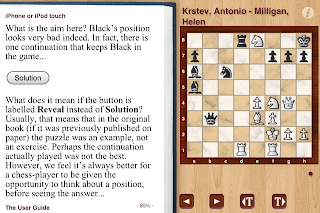
For chessboard positions presented as puzzles/exercises to be solved, a Solution button is provided, concealing the solution moves until you are ready to see them.
Before the Solution button has been pressed:

After the Solution button has been pressed, and having proceeded to Black's hypothetical 34th move:

The developers took the initiative to improve the way example positions could be presented. In a print book, example positions are accompanied by moves explaining correct play. In e+ Chess Books, such examples can be converted into a puzzle, but instead of a Solution button, a Reveal button would be used (not shown here). This approach affords more opportunity to think about a position without immediately reading a discussion of possible moves. I have yet to see one of these myself, but I imagine such example-puzzles converted from print books might not read totally naturally, since the author's original writing would not have included provisions for same. However, you can always tell from each diagram in the text, or from the right side chessboard, whose turn it is to move (the accompanying little circle is hollow for White to move, solid for Black to move). I imagine two diagrams and slightly modified text may be needed in an e-book if the corresponding print book's diagram caption is "Black to move and draw; White to move and win", at least if a Reveal button is used.
This app does not currently allow you to add bookmarks or notes. Even without those capabilities, this app remains even better than what I imagined as a well-designed chess e-book reader, such as touched on by myself and others in this Amazon book review comment thread.
A figurine algebraic notation version of the out-of-copyright Chess Fundamentals written by former World Chess Champion José Raúl Capablanca is free to download within the app. This is the first free e-book version of that which I found whose move notation has been modernized from the original descriptive notation, and that is a welcome sight indeed. My previous investigations into using other e-book readers (ones not specialized for chess) for Chess Fundamentals were interesting experiences, but I will be using the e+ Chess Books app from now on while working through that book. Since getting it in e-book format several months back (prior to discovering this e+ Chess Books app), I've probably worked through more of its material than I had during the 20 or so years I've owned the print edition.
If you use the same Apple ID for multiple iOS devices, the folks at e+ Chess Books have informed me that purchased e-books can be shared without additional cost by using the Restore All button. To check on something for this blog entry, I deleted this app then reinstalled it over wireless, and re-downloaded Chess Fundamentals. The left half text was oddly blank until I used the Restore All button, but it's behaving normally now. Subsequent communication with them indicated that the text half of the screen going blank was caused by a lack of RAM, which typically affects older/smaller iOS devices -- the iPad 2 and "the new iPad" (3rd generation) are probably immune to this problem. Their recommendation was to use the Reset button in Options. Restore All fixed it, but was not the most direct solution.
As of 5/12/12, there are eight "activated" (put into the app-specific e-book format) chess e-books available for purchase. I look forward to more titles being released; even some print books I already own would be worth buying again for use with this app.
This app looks even better on an iPad with its much larger screen area, but the developers made stellar design decisions for the small screen of the iPod/iPhone. Their only practical competitor that I know of is Chess Viewer (version 2) from the Everyman Chess publishing company; that app will of course serve as the delivery avenue for Everyman Chess books. However, on an iPod/iPhone, that Chess Viewer app can at one time only display EITHER the chessboard accompanied by two move pairs OR the book text; you cannot see both simultaneously.
The text, including diagrams, of the e-book is on the left half of the screen, while a chessboard is on the right. The current move is identified in both halves of the screen as you progress through a game (e.g., we are right before Black's 15th move in the chessboard below). You can read backward or forward (e.g., by using the swipe action) through the left half text without affecting the right half (although tapping on a move in the text will update the right half). You can change the size of the left half text, but I found the default size acceptable. Some of the pieces in the figurine algebraic notation are a bit fuzzy, but that is a minor distraction.

Chess books typically include sequences of hypothetical moves ("annotations", discussing what things would be like if the players had played moves different from those moves played in the actual game). e+ Chess Books allows you to choose between playing through only the game's actual moves (the < and > buttons), or through all moves, including those in annotations (the <T and T> buttons; T for Text, presumably). You can freely switch between these two ways of going backward or forward.
If you have moved into annotations, the < and > buttons will advance you through those moves, but halt at the end of those particular annotations (perhaps to indicate that you may have inadvertently moved into the annotations?). If you go backward using the < button beyond the beginning of those annotations, you cannot re-enter the annotations by going forward with the > button.
To go directly to actual game/position moves or annotation moves, tap on the desired move in the left side text. This automatic update of the right side chessboard eliminates the chore of manually resetting pieces on a physical chessboard, no matter which moves you're reviewing.
For chessboard positions presented as puzzles/exercises to be solved, a Solution button is provided, concealing the solution moves until you are ready to see them.
Before the Solution button has been pressed:

After the Solution button has been pressed, and having proceeded to Black's hypothetical 34th move:

The developers took the initiative to improve the way example positions could be presented. In a print book, example positions are accompanied by moves explaining correct play. In e+ Chess Books, such examples can be converted into a puzzle, but instead of a Solution button, a Reveal button would be used (not shown here). This approach affords more opportunity to think about a position without immediately reading a discussion of possible moves. I have yet to see one of these myself, but I imagine such example-puzzles converted from print books might not read totally naturally, since the author's original writing would not have included provisions for same. However, you can always tell from each diagram in the text, or from the right side chessboard, whose turn it is to move (the accompanying little circle is hollow for White to move, solid for Black to move). I imagine two diagrams and slightly modified text may be needed in an e-book if the corresponding print book's diagram caption is "Black to move and draw; White to move and win", at least if a Reveal button is used.

This app does not currently allow you to add bookmarks or notes. Even without those capabilities, this app remains even better than what I imagined as a well-designed chess e-book reader, such as touched on by myself and others in this Amazon book review comment thread.
A figurine algebraic notation version of the out-of-copyright Chess Fundamentals written by former World Chess Champion José Raúl Capablanca is free to download within the app. This is the first free e-book version of that which I found whose move notation has been modernized from the original descriptive notation, and that is a welcome sight indeed. My previous investigations into using other e-book readers (ones not specialized for chess) for Chess Fundamentals were interesting experiences, but I will be using the e+ Chess Books app from now on while working through that book. Since getting it in e-book format several months back (prior to discovering this e+ Chess Books app), I've probably worked through more of its material than I had during the 20 or so years I've owned the print edition.
If you use the same Apple ID for multiple iOS devices, the folks at e+ Chess Books have informed me that purchased e-books can be shared without additional cost by using the Restore All button. To check on something for this blog entry, I deleted this app then reinstalled it over wireless, and re-downloaded Chess Fundamentals. The left half text was oddly blank until I used the Restore All button, but it's behaving normally now. Subsequent communication with them indicated that the text half of the screen going blank was caused by a lack of RAM, which typically affects older/smaller iOS devices -- the iPad 2 and "the new iPad" (3rd generation) are probably immune to this problem. Their recommendation was to use the Reset button in Options. Restore All fixed it, but was not the most direct solution.
As of 5/12/12, there are eight "activated" (put into the app-specific e-book format) chess e-books available for purchase. I look forward to more titles being released; even some print books I already own would be worth buying again for use with this app.
This app looks even better on an iPad with its much larger screen area, but the developers made stellar design decisions for the small screen of the iPod/iPhone. Their only practical competitor that I know of is Chess Viewer (version 2) from the Everyman Chess publishing company; that app will of course serve as the delivery avenue for Everyman Chess books. However, on an iPod/iPhone, that Chess Viewer app can at one time only display EITHER the chessboard accompanied by two move pairs OR the book text; you cannot see both simultaneously.
Saturday, December 17, 2011
Opera Mini vs iOS 5 Safari
This entry is originally being written to compare Opera Mini 6.5.1 (1/16/12: I upgraded to 6.5.2 and have noticed no problems with it.) with iOS 5.0.1 Safari, primarily on an iPod, although some non-iPod comments may be included. This entry will likely get updates, either unadvertised or advertised-with-dates, over time. I mostly read text while browsing the web on my iPod, which is probably one reason why Opera Mini works so well for me. I have little to say about images and videos in Opera Mini.
My earlier blog entry about Opera Mini 6/6.0.1 vs iOS 4 Safari.
The free Opera Mini web browser is an alternative to Apple's Safari browser, with various pluses and minuses. Wikipedia has a decent article on it: http://en.wikipedia.org/wiki/Opera_mini, which also links to the interesting http://dev.opera.com/articles/view/opera-mini-web-content-authoring-guidelines/. A list of technical specifications can be found at: www.opera.com/mobile/specs/. Version 6.5.1 was released on 11/14/11, with some fixes for 6.5, which was released a little while earlier. Version 6.5.2 was released 1/11/12.
Opera Mini has long been my primary browser for my iPod (and later, iPad, too). An iPod is typically connected to the Internet less often than an iPhone, so some of the following items (e.g., Saved Pages) are more significant for iPod users like myself.
PROS:
My earlier blog entry about Opera Mini 6/6.0.1 vs iOS 4 Safari.
The free Opera Mini web browser is an alternative to Apple's Safari browser, with various pluses and minuses. Wikipedia has a decent article on it: http://en.wikipedia.org/wiki/Opera_mini, which also links to the interesting http://dev.opera.com/articles/view/opera-mini-web-content-authoring-guidelines/. A list of technical specifications can be found at: www.opera.com/mobile/specs/. Version 6.5.1 was released on 11/14/11, with some fixes for 6.5, which was released a little while earlier. Version 6.5.2 was released 1/11/12.
Opera Mini has long been my primary browser for my iPod (and later, iPad, too). An iPod is typically connected to the Internet less often than an iPhone, so some of the following items (e.g., Saved Pages) are more significant for iPod users like myself.
PROS:
- Opera Mini does not automatically reload a page when you tap the back arrow to return to it, at least if you return within "some" period of time (about whose duration I cannot be more specific). Thus, if you are reading a page which has multiple links to other pages, e.g., Google News, then tap to read an article, returning to the original page will often not invoke (frequently pointless and time-wasting) reloading, unlike in Safari. Also, if you load pages into different tabs while you have Internet access, but later lose that access, you can sometimes still read those pages, even without having stored them as Saved Pages. If you switch back to or restart Opera Mini, it does not attempt to reload pages fresh from the Internet; if it still "remembers" them (which apparently is not always), it gives you back what it last had for their content. Interestingly, Google News now seems to reload on rare occasions, which I do not remember happening previously; that could be because of changes in Opera Mini and/or at Google News. Available RAM issues mentioned below may still be applicable.
- Unlike in Safari, you don't have to switch away from the current tab to open new pages, because you can open links in background tabs (tap-hold, then tap on "Open in New Tab"). This is helpful while, e.g., reading through all headlines in Google News, allowing you to open all stories you'd like to read in background tabs. Available RAM issues mentioned below may still be applicable.
- Unlike Safari, Opera Mini allows saving of static copies of web pages on the iPod, letting you read or reread them later even without wireless Internet access. That can be useful to save pages for recipes, technical reference, humorous articles, or for any other reason, e.g., because you don't have time to read them right away. Safari's Reading List saves URLs (across all iOS devices sharing the same Apple ID), but still requires an Internet connection to view those pages.
- At least 15 (someone else can test for the maximum number...) tabs are possible in Opera Mini, exceeding Safari's limit of 8. RAM constrains the total number of tabs effectively usable. "The page has been cleared to save memory." message is what you are left with content-wise on a tab when you run low on available RAM.
- Using Single Column View ensures that, because of its size, text will be pleasantly readable in portrait mode, at least for me. http://www.thechessmind.net/ is a chess blog which I often read. In Safari, I normally need to "spread" or switch to landscape mode to make the text more legible, but the text has always been fine to read right away in portrait mode in Opera Mini.
- If you make an account on Opera's servers, you can use Opera Link to determine at what frequency to save both your (up to 9) Speed Dial targets and your bookmarks there, for future restore (e.g., in case of a serious crash) or for sharing on another device(s), including on a pc. Automatic syncing is possible, but I prefer to sync bookmarks manually, which avoids attempts to connect to Opera's servers when you know (or perhaps, even when you don't know) that you lack wireless Internet access. Opera Link can also be used at any time on any Opera Mini instance device, so it is not linked inextricably to an Apple ID like iOS 5 Safari's Reading List. Although I didn't test this, it appears that if you use desktop Opera, there is supposedly an Opera Mini folder for bookmarks, which is the extent of the bookmarks that get synced with Opera Link.
- The location box now has a star which is a shortcut to bookmark a URL; this portion of the star's functionality is actually only achieving parity with Safari. You can also still bookmark a URL the older, slower, but more functional way as well. The star's bonus is that if you are viewing a previously-bookmarked page, the star is yellow, indicating its already-bookmarked status. This can help you avoid unintentional duplicate bookmarks, though maybe you'd want to bookmark a URL in more than one bookmark folder. A drawback of using the star shortcut to bookmark a URL is that you do not have the option of using something other than the web page's HTML title as the bookmark's title. One news site that I frequently use often doesn't include useful page titles, so I would want to edit in something useful if I were to bookmark such a page. Since bookmark names are limited to less than the width of the iPod screen, I also might want to edit out words with no real identifying value from some page titles when creating a Bookmarks -- I need to be able to identify each by the short text.
- After being forcibly ejected from RAM (by the user), Opera Mini starts up with the page data it previously had. This does mean, however, that you cannot close multiple tabs at once, which I consider a favorable trade in functionality.
- Opera Mini's x cancel button is bigger than Safari's, and is spaced farther away from other things you wouldn't want to hit. Better for those times when you've inadvertently tapped on a link which is still loading, but in whose content you actually have no interest.
- Opera Mini does not provide end-to-end encryption. If you want to avoid putting your sensitive data in their company's hands, don't use Opera Mini for anything requiring credentials or anything to which you're concerned about them having potential access. (I blogged this using Safari on my iPad, and made subsequent small edits using Safari on my iPod.)
- There is a short startup delay as it makes the connection to the Opera proxy servers ("calls home"), and apparently also retrieves your local settings.
- Presumably because of the Opera proxy server, has extreme difficulties using maps.google.com effectively; I strongly advise using Safari for that. Even Safari cannot yield copyable text, though.
- On rare occasions, my initial attempt to bring up a page doesn't succeed, which I imagine is an Opera proxy server issue.
- Opera's proxy servers may lead to this side effect:
Going to, e.g.:
http://www.cnn.com/2011/HEALTH/05/26/dumb.doctors.office.ep/
prompts you with:
It looks like you are from outside the U.S. Would you like to make International your default edition? Yes | No Close
which I chose to simply ignore. - Records of chess games using figurine notation in ChessBase website articles like http://www.chessbase.com/newsdetail.asp?newsid=7882 are not, for all practical purposes, readable in Opera Mini, which does not render figurine notation properly. For this particular game, Alejandro Ramirez the annotator apparently used (non-figurine) algebraic notation for his handwritten notes, but copied and pasted in figurine notation from complementary analysis generated by a computer chess program.
- Only Safari can Add to Home Screen, using apple-touch-icon.png when available (not favicon.ico, as it turns out; according to http://www.webmasterworld.com/html/3560399.htm). Opera Mini's Speed Dial is a substitute, which I actually find more helpful because all 9 are in the same place. If you were to bookmark multiple pages in Safari, that would create additional icons on your Home Screen which are less likely to all be in the same location.
- When using Single Column View, some items which might typically (as viewed, e.g., while not using Single Column View, or in Safari) be unobstrusive on the side of a web page may appear, sometimes as a large clump, at the top or bottom. I have gotten used to that, and simply swipe to get past the clump, if it's at the top, to get to the real content, e.g., on http://www.thechessmind.net/. This conveniently means that I typically don't even have to see any advertising which ends up in a bottom clump.
- Find in Page: The Done button means done with searching; search happens as you type. Can search repeatedly in a page. Safari can find in page also, although it's probably somewhat less intuitive; see, e.g.: http://www.tipb.com/2010/09/16/ios-42-features-find-text-safari-web-page/
- If a tab's pages started from the Start Page, you can return directly to the Start Page (the first page viewed in that tab) by tapping the O ("Opera") button, then tapping Start Page. If a tab's pages never included the Start Page (because the tab was created with "Open in New Tab"), there is no access to it within that tab.
- 9/4/11: Power-User settings are available by going to config: in the location bar, as described further on http://www.guruslodge.com/bmobile-phones-tutorial-and-solution-centerb/operamini-secret-codes/, which I just discovered. Changes likely survive Opera Mini crashes. For my own usage, I turned off the Phonenumber detection, which I suspect is probably only of use if (a) you have an iPhone (which I don't), and want to call such a number immediately, or (b) you normally use iOS assistance to add new contacts (which I don't, for reasons mentioned here).
- On an iPad under iOS 5.0.1, I updated Opera Mini 6.0.1 to 6.5.1 on two separate occasions (I reverted to 6.0.1 after the first time), but could no longer save pages. In between those two attempts, I was surprised to see 6.5.1 successfully save pages on an iPod running iOS 5.0.1. I decided to sacrifice my iPad's Opera Mini saved pages, delete the 6.0.1 entirely, and download a fresh Opera Mini 6.5.1 (3rd installation), which allowed me to save pages.
- Opera Mini's Single Column View trumps Safari's Reader, in my opinion. Particularly on the iPod, why wait to have something drawn (or partially drawn) before you can activate Reader, when all the while you can see that the text will be too small to read (without the Reader enhancement)? Just go directly to the readable version, all the time, with Opera Mini's Single Column View. I once saw a page with ads in the middle of the article and the Reader rendition ended at the ad. I can't reproduce that now with the same page, but regardless, I prefer to maximize my chances of getting all the text the first time, legibly, as fast as possible. Safari's Reader remains helpful any time you are in Safari and are confronted with too-small-to-read text, e.g., when clicking on a link in e-mail, which will open in Safari (unless you have jail broken your iPod to configure a different default browser, which I think is possible).
- When using tap-hold ("Long-click" in the Opera Mini help) to select text, Opera Mini selects the word closest to your position and displays a beginning and end marker, each of which you can drag to change the text selected. When done, you tap Select and choose from Copy/Search/Search With...(and Go to Address... if the selection is a single word). As far as I have been able to tell, Safari does the same kind of initial selection in mobile sites, but the choice (no need to tap an additional Select) is Copy (and Define if the selection is a single word). For non-mobile sites, Safari selects the paragraph closest to your position and displays 4 markers (top, bottom, left, right) which you can drag to change the text selected. I'm not sure if I've ever needed to do anything but Copy after selecting text; if I do, I'll try to add that detail. Opera Mini may also behave differently when not using Single Column View, but that is left as an exercise for the reader; I always use Single Column View.
- The Single Column View option no longer exists under Settings on the iPad, if it was actually there in earlier versions, which I can no longer remember.
Sunday, December 4, 2011
Update an app but retain option to revert to older version
Data you save for an app might not be able to be restored (it really depends on how the app stores data) if you restore the app using this technique. If that data is valuable enough, you may be obliged to never revert from the update of such an app. Your need to continue using your already-saved data may force you to accept any changes in behavior of an app's new version, even if you could revert the app itself.
The following steps using PC iTunes over USB cable enabled me to revert to Opera Mini browser 6.0.1 after a quick, disappointing test of 6.5.1 on an iPad running iOS 5.0.1, and should work the same way on an iPod.
The following presumes the iOS device is normally using iCloud backup, and also that Opera Link was previously used to save bookmarks and Speed Dial targets. Other apps may have other customization steps akin to Opera Link.
Remember that PC iTunes can save (specific versions of) apps even if they later get removed from the App Store. Some apps are removed because they are replaced by a newer version, and some get totally removed (often enough without explanation). I haven't tested, but something like the above likely works from iCloud backup, except perhaps for apps removed from the App Store.
6/25/12: The following (or something close to it) is behavior I observed a while back during testing, which is quite logical but caught me by surprise:
If you have multiple iOS devices syncing with the same PC's iTunes, be careful with any app which is a Universal Binary (same app runs on both iPod/iPhone and iPad size screens, making full usage of the two respective screen sizes) which you use on all devices. If you update it on one device and sync that device with the PC's iTunes, the other device(s) will also get that app updated to the newer version when it syncs with that PC's iTunes.
The following steps using PC iTunes over USB cable enabled me to revert to Opera Mini browser 6.0.1 after a quick, disappointing test of 6.5.1 on an iPad running iOS 5.0.1, and should work the same way on an iPod.
The following presumes the iOS device is normally using iCloud backup, and also that Opera Link was previously used to save bookmarks and Speed Dial targets. Other apps may have other customization steps akin to Opera Link.
- Disable backup to iCloud on device (I overlooked this precautionary step in my test).
- Disable backup to iCloud on device within PC iTunes (if needed).
- Backup device via USB cable to PC iTunes.
- Update app on iOS device over wireless.
- Test updated app on iOS device.
12/7/11: If you are going to test the app for an extended time, DO NOT leave the app on the device when syncing the device with PC iTunes before completing testing, because the sync will wipe out your old version of the app in PC iTunes. If you are saving any data with the new version of the app, you're going to have to give it all up should you need to delete the app for this scenario. I overlooked this when I was testing 6.5.1 on my iPod, so I lost my 6.0.1 version in PC iTunes, but fortunately 6.5.1 turned out to be a superior replacement. - If you prefer the older version of your app, delete the updated app from iOS device, then manually copy the older version back to the iOS device within PC iTunes.
- Use Opera Link to restore bookmarks and Speed Dial targets (the latter will get up-to-date page images).
- Disable Opera Link (unless you normally keep it enabled).
- Move the (restored) Opera Mini icon to your desired Home Screen location.
- Re-enable backup to iCloud on device.
- Re-enable backup to iCloud on device within PC iTunes if needed.
Remember that PC iTunes can save (specific versions of) apps even if they later get removed from the App Store. Some apps are removed because they are replaced by a newer version, and some get totally removed (often enough without explanation). I haven't tested, but something like the above likely works from iCloud backup, except perhaps for apps removed from the App Store.
6/25/12: The following (or something close to it) is behavior I observed a while back during testing, which is quite logical but caught me by surprise:
If you have multiple iOS devices syncing with the same PC's iTunes, be careful with any app which is a Universal Binary (same app runs on both iPod/iPhone and iPad size screens, making full usage of the two respective screen sizes) which you use on all devices. If you update it on one device and sync that device with the PC's iTunes, the other device(s) will also get that app updated to the newer version when it syncs with that PC's iTunes.
Saturday, December 3, 2011
iOS third party apps you may not wish to update
(Last updated, in whole or in part, on 10/28/13, when I was using iOS 5.1.1. Intended to be updated over time.)
Newer versions of apps sometimes function worse than their predecessors. Sometimes existing functionality is taken away or is changed in an undesirable way (sometimes breaking entirely).
Below are apps for which I consider or have reason (e.g., App Store reviews) to suspect that a non-current version(s) worked better. Having been burned in the past, in the App Store app's Updates section I long ago stopped using the Update All button in favor of updating apps individually. If this list grows too large for me to remember easily, it will be handy for me to check against when updating apps, to reduce the chance of updating an app for which I prefer an older version.
If an older version of an app works well, and there is no compelling or interesting new functionality offered in its newer version(s), I would not likely bother with much testing of newer versions. If someone using a newer version of any app listed below finds my comments about functionality to be incorrect, I would welcome a comment to that effect, which could prompt me to do additional testing and potentially revise this list.
If you made a backup of the iOS device to PC iTunes before updating an app on the iOS device, deleting the new version of the app (e.g., if you don't like it) from the iOS device, then using PC iTunes you should be able to get the older version back via either direct copy or sync (my Opera Mini 6.5.1 test on an iPad). If you don't take such precautions, you could be locked into the new version. (10/28/13: http://www.iphonehacks.com/2013/07/revert-to-older-version-ios-app-itunes.html has good information, and you can do a Google search for "recover old ios app .ipa", which is how I found that web page.)
I haven't investigated to what degree iCloud backup can be similarly helpful (as PC iTunes) for such things, but my understanding is that if the App Store no longer has an app, you will not be able to get it back from there. I have several free apps which are no longer in the App Store, but which I can still restore to my iOS devices from PC iTunes, including:
iOS 5:
iOS 4 (I'm only listing a couple of apps and am unlikely to add more, since I'm in the iOS 5 world now):
Newer versions of apps sometimes function worse than their predecessors. Sometimes existing functionality is taken away or is changed in an undesirable way (sometimes breaking entirely).
Below are apps for which I consider or have reason (e.g., App Store reviews) to suspect that a non-current version(s) worked better. Having been burned in the past, in the App Store app's Updates section I long ago stopped using the Update All button in favor of updating apps individually. If this list grows too large for me to remember easily, it will be handy for me to check against when updating apps, to reduce the chance of updating an app for which I prefer an older version.
If an older version of an app works well, and there is no compelling or interesting new functionality offered in its newer version(s), I would not likely bother with much testing of newer versions. If someone using a newer version of any app listed below finds my comments about functionality to be incorrect, I would welcome a comment to that effect, which could prompt me to do additional testing and potentially revise this list.
If you made a backup of the iOS device to PC iTunes before updating an app on the iOS device, deleting the new version of the app (e.g., if you don't like it) from the iOS device, then using PC iTunes you should be able to get the older version back via either direct copy or sync (my Opera Mini 6.5.1 test on an iPad). If you don't take such precautions, you could be locked into the new version. (10/28/13: http://www.iphonehacks.com/2013/07/revert-to-older-version-ios-app-itunes.html has good information, and you can do a Google search for "recover old ios app .ipa", which is how I found that web page.)
I haven't investigated to what degree iCloud backup can be similarly helpful (as PC iTunes) for such things, but my understanding is that if the App Store no longer has an app, you will not be able to get it back from there. I have several free apps which are no longer in the App Store, but which I can still restore to my iOS devices from PC iTunes, including:
- CEDictionary 1.0 (Chinese English dictionary which speaks pronunciation)
- Go To There 1.1 (retrieves and formats public transportation information)
iOS 5:
- Convert Units for Free - #1 Unit Conversion App 4.0. Version 4.1 was released 2/28/12, and the 5 "Most Helpful" reviews are all 1 star out of 5. Based on the content of those reviews, ads have proliferated wildly in the app. 14 of the 31 ratings are 1-star, outgunning the 11 that are 5-star. If those reviews are on the mark, its advertised "#1 Unit Conversion App" status is likely in jeopardy (if that was accurate in the first place, of course).
- Flashlight (my blog entry) 5.1 This is the app from John Haney Software, which became Apps from Outer Space when 5.2 was released. 5.2 seems to have a slightly longer delay before the flashlight effect, which is a net negative since I want bright light as soon as possible. I expect I'd still choose 5.2 over other flashlight apps, but I plan to stick with my 5.1.
- Google Search 2.5.2 Version 3.0.0, released 4/29/13, "[n]ow turns on Location Services. Even though the icon stays on, the app has minimal battery impact." While the calmer reviews in the Apple App Store seem to agree, the ones decrying the truth of that make me a bit leery of upgrading.
- How to Tie a Tie Free 4.0 Some App Store reviews suggest that version 4.1 may now hammer you frequently to rate it, and provides a pre-written 5-star review for you to approve. No, I haven't rated it, but I also haven't truly used it to tie a tie, either, despite having loaded it quite some months ago, and only ever knowing one lame-looking knot. I don't need to be browbeaten to rate this app.
- Mercury Web Browser Lite (my blog entry) 5.1 didn't show ads on the iPod.
5.2 does show ads, though not continuously. I would probably not have upgraded, but I was dealing with a version problem with a different app when I synced with PC iTunes, and I hadn't paid enough attention to this app, which I use relatively rarely.
5.2.1: The company's write-up in the App Store says "Remove ads for iPhone version". A review claims that 5.2.1 also took away User Agent spoofing, which can be pretty useful.
I bought the paid version, which still has the User Agent spoofing. The developers have done good work, certainly worth 99 cents! - Mercury Web Browser Pro (my related blog entry) 6.0.1 preserves the last used brightness setting into the next session. A review claims that 7.0 starts up at full brightness, which night readers are likely to find undesirable.
Notespark 1.3.2 Version 1.4 (AND/OR possible changes on their server?) caused loss of data when I synced (I only sync manually) on at least half a dozen occasions in fewer than two months of daily (or practically daily) usage. I count myself very fortunate to have been able to revert back to 1.3.2, and will be watching to see whether I encounter similar loss of data now -- the syncing was virtually flawless for years before I (temporarily) upgraded to 1.4.(10/28/13: Notespark has been removed by the developers from the Apple App Store.)
- ShuBook 1.4.2 appears to be markedly preferable to later versions. Some App Store reviews slammed version 2.0.
- Speedtest.net (my blog entry) 2.1.1 Some App Store reviews for 2.1.2 and 2.1.3 have made me leery of updating. The app works fine for me already, and supposedly there are some new legal agreement issues. Also, the 11/24/11 App Store review of 2.1.3 from joekul claimed that the history (of WiFi speed test results) feature went missing. I don't have specific plans to verify that; 2.1.1 still has that history, which is of some value to me.
- The Weather Channel (my blog entry) 4.1.1 Some App Store reviews for the subsequent version have made me leery of updating. It sounds as if the ads have gotten more and more in your face (flashing, it seems) without meaningful gains in functionality.
- Weather+ Free 1.6 includes forecasting of humidity levels for the coming days (accuracy not guaranteed, of course!). Version 2.0 (updated 6/21/12) no longer has that functionality. That functionality also seems to have disappeared in the paid version 2.02 (also updated 6/21/12), based on what I see in Apple's App Store.
- White Noise 5.4.2 The 5.5.1 update introduced a bug which prevents the alarm from sounding if you are using the Music Alarm Event (through which you select Music from your device's Songs collection to which to wake up). Also, I prefer the fake big LED clock digits of 5.4.2 over the slim digits of 5.5.1. With 5.4.2, I already have all the functionality I need from this app, so there's really no significant utility in updating further (indeed, there is risk, as I discovered with 5.5.1).
- Yahoo! 2.3.8 At least two Apple App Store reviews suggest that in 3.0 (released 4/22/13), they removed Mail from the menu, which I use to mark messages as spam. The Yahoo! Mail app, which they suggest you use instead, requires iOS 6. I'm staying with iOS 5 as long as possible for multiple reasons, one of which is because the accompanying text for podcasts is truncated in iOS 6 (and was initially truncated from the Podcasts app in iOS 5).
They had previously removed Mail from the menu in version 2.3.7, but with 2.3.8 (released 3/22/13), they restored it due to "popular demand" ("popular outrage" might be more accurate). Given the history, I can't muster any enthusiasm to even bother trying version 3.0.
iOS 4 (I'm only listing a couple of apps and am unlikely to add more, since I'm in the iOS 5 world now):
- OverDrive Media Console (my blog entry) 2.3.2 Version 2.3.3 apparently introduced a bug that prevents download of e-books to the iPod under iOS 4.3.5. It may even wipe out existing e-books, but I cannot confirm that.
(Version 2.3.3 can, however, download e-books to the iPod under iOS 5.)
- Stanza (my blog entry) 3.1 Version 3.2 of Stanza doesn't work under iOS 4.
(Version 3.2 is needed under iOS 5, which would not run 3.1.)
Friday, November 25, 2011
Google Music
Google has launched its cloud-based service for music streaming. You can download their free Music Manager software (I used version 1.0.22.3409) to your computer, then use a (free) Google account to upload your computer's existing library of music to their servers, up to 20,000 songs.
With Internet access, you can then play your songs from a browser on a computer, on selected Android devices (which likely provide the best experience), or from a browser on an iOS 4 or higher device: http://www.google.com/support/androidmarket/bin/answer.py?hl=en&answer=1114577&topic=1663424.
Under iOS 5.0.1, I use Safari, which worked best in my testing, and I bookmarked the site in Safari's Reading List, to be shared across any iOS device having my Apple ID. Using Camera Roll on a 4th generation iPod, which includes the possibility of playing video (which includes an audio component, which would naturally compete), stops music that is playing. Some other apps like Mail, which don't have native, primary audio components, could be used without interrupting the music.
I tried two browsers I rarely use, Late Browser Mobile (1.0) and Sleipnir Mobile (1.4.8), to see if they might be repurposed as music-playing apps. They were apparently limited to playing a single song once (continuous play would not work), and unlike Safari, they stopped playing music as soon as you tried to switch to another app (with a double press of the Home button).
With no Passcode set on an iOS device, you can set Auto-Lock to never, which is optimal for using Google Music.
However, if you have a Passcode set on your iPod, the Auto-Lock can be set for at most 5 minutes, severely limiting your options for using Google Music. The maximum analogous iPad option is 15 minutes.
Apparently, Safari must be open in the foreground and the iPod active (i.e., not in sleep mode) for much or all of the time that you are using Google Music in order to play multiple tracks continuously. If the iPod goes to sleep mode, it still loads the next track, but you must wake the iPod to play the track.
If you want to replay the same track continuously, Safari need not be in the foreground, and the track will keep playing even if the iPod goes into sleep mode. Perhaps only folks like me, who years ago recorded the same song continuously on both sides of a cassette tape to play on auto-reverse tape decks, can really enjoy Google Music on an iPod (A version of 茉莉花, plus The Art of Noise's Moments in Love from The Best of the Art of Noise, inspired me to make such tapes.).
I had previously ripped my CDs at 320 kbps (highest quality) onto my PC, primarily for use with my Microsoft Zune. The Zune provided a very helpful introduction to podcasts and mp3 usage, but I use it less and less over time. The ripping process for those CDs was long and laborious. Not particularly needing music on my iPod, I never felt like repeating it for PC iTunes, or cared enough to look into how to make those mp3 files usable in PC iTunes (particularly if such required making another copy of each song for PC iTunes). Google's Music Manager allows me to leverage my existing mp3 library with a bulk upload operation for use with my iOS devices. With my slow Internet access, it took me about two weeks (mostly overnight) to upload around 3200 songs and podcasts.
If you lost all the media (e.g., iOS device, personal computer, CDs) on which you have your music collection (e.g., because of a natural disaster), your Google Music backup should still be available. The rules (as of 12/5/11, anyway) allow you to download 320 kbps mp3 files of your music: http://www.google.com/support/androidmarket/bin/answer.py?&answer=1701736. I load only some of my songs onto my iPod, but upload all of them to Google Music as a remote backup, and for occasional web browser listening.
The iPod speaker can be fairly tinny sounding, but I am not a serious connoisseur of audio quality. I generally don't like wearing earbuds, so any time I can reasonably listen to stuff without them is good with me.
My slow Internet access could be a significant factor for some of the following symptoms which I experienced on an iPod or on an iPad:
11/28/11:
Even with better wireless Internet access than I normally have, it's really seemed like if you want to hear one song play all the way through on an iPod, you have a decent but not 100% guaranteed shot at that, and your chances get worse if you want more than that. Google Music is okay with me since I rarely have a particular need to listen to music on my iPod, but it may not be worth the effort for many folks. (Soon after writing this blog entry, I was obliged to get a new iPod, one whose port actually worked normally. I quickly enough discovered how nice it was to listen to music stored locally on the iPod, and Google Music became rather less significant to my iPod use.)
With Internet access, you can then play your songs from a browser on a computer, on selected Android devices (which likely provide the best experience), or from a browser on an iOS 4 or higher device: http://www.google.com/support/androidmarket/bin/answer.py?hl=en&answer=1114577&topic=1663424.
Under iOS 5.0.1, I use Safari, which worked best in my testing, and I bookmarked the site in Safari's Reading List, to be shared across any iOS device having my Apple ID. Using Camera Roll on a 4th generation iPod, which includes the possibility of playing video (which includes an audio component, which would naturally compete), stops music that is playing. Some other apps like Mail, which don't have native, primary audio components, could be used without interrupting the music.
I tried two browsers I rarely use, Late Browser Mobile (1.0) and Sleipnir Mobile (1.4.8), to see if they might be repurposed as music-playing apps. They were apparently limited to playing a single song once (continuous play would not work), and unlike Safari, they stopped playing music as soon as you tried to switch to another app (with a double press of the Home button).
With no Passcode set on an iOS device, you can set Auto-Lock to never, which is optimal for using Google Music.
However, if you have a Passcode set on your iPod, the Auto-Lock can be set for at most 5 minutes, severely limiting your options for using Google Music. The maximum analogous iPad option is 15 minutes.
Apparently, Safari must be open in the foreground and the iPod active (i.e., not in sleep mode) for much or all of the time that you are using Google Music in order to play multiple tracks continuously. If the iPod goes to sleep mode, it still loads the next track, but you must wake the iPod to play the track.
If you want to replay the same track continuously, Safari need not be in the foreground, and the track will keep playing even if the iPod goes into sleep mode. Perhaps only folks like me, who years ago recorded the same song continuously on both sides of a cassette tape to play on auto-reverse tape decks, can really enjoy Google Music on an iPod (A version of 茉莉花, plus The Art of Noise's Moments in Love from The Best of the Art of Noise, inspired me to make such tapes.).
I had previously ripped my CDs at 320 kbps (highest quality) onto my PC, primarily for use with my Microsoft Zune. The Zune provided a very helpful introduction to podcasts and mp3 usage, but I use it less and less over time. The ripping process for those CDs was long and laborious. Not particularly needing music on my iPod, I never felt like repeating it for PC iTunes, or cared enough to look into how to make those mp3 files usable in PC iTunes (particularly if such required making another copy of each song for PC iTunes). Google's Music Manager allows me to leverage my existing mp3 library with a bulk upload operation for use with my iOS devices. With my slow Internet access, it took me about two weeks (mostly overnight) to upload around 3200 songs and podcasts.
If you lost all the media (e.g., iOS device, personal computer, CDs) on which you have your music collection (e.g., because of a natural disaster), your Google Music backup should still be available. The rules (as of 12/5/11, anyway) allow you to download 320 kbps mp3 files of your music: http://www.google.com/support/androidmarket/bin/answer.py?&answer=1701736. I load only some of my songs onto my iPod, but upload all of them to Google Music as a remote backup, and for occasional web browser listening.
The iPod speaker can be fairly tinny sounding, but I am not a serious connoisseur of audio quality. I generally don't like wearing earbuds, so any time I can reasonably listen to stuff without them is good with me.
My slow Internet access could be a significant factor for some of the following symptoms which I experienced on an iPod or on an iPad:
- There is a delay before each streamed track begins.
- A track might not initially start playing. Hitting pause and/or play sometimes starts it playing.
- A track might abruptly stop playing. Sometimes it will restart by itself.
- When playing multiple tracks, a track might abruptly stop playing, and the next track might start.
- If you switch from playing one track to playing another (in my experience, switching between tracks of different artists), the album artwork display may get updated before the streamed track, such that hitting play for the second track actually plays the first track. Hitting pause, then play, corrected that.
11/28/11:
Even with better wireless Internet access than I normally have, it's really seemed like if you want to hear one song play all the way through on an iPod, you have a decent but not 100% guaranteed shot at that, and your chances get worse if you want more than that. Google Music is okay with me since I rarely have a particular need to listen to music on my iPod, but it may not be worth the effort for many folks. (Soon after writing this blog entry, I was obliged to get a new iPod, one whose port actually worked normally. I quickly enough discovered how nice it was to listen to music stored locally on the iPod, and Google Music became rather less significant to my iPod use.)
Sunday, October 23, 2011
iOS 4 vs iOS 5: podcasts
What was named the iPod app under iOS 4 on the iPad was split into a Music app and a Videos app under iOS 5 on the iPad. The Music app functionality in iOS 5 on an iPad is SIGNIFICANTLY different from, and inferior to, its former functionality, at least with respect to podcasts.
Having upgraded my iPod to iOS 5, for the most part I have not noticed any loss of podcast functionality compared to iOS 4. I think the following is a new iOS 5 improvement: when playing a podcast while a Passcode Locked iPod is in sleep mode, press the Home button twice to bring up selected touchscreen controls which can be used without unlocking the iPod. Back, Pause, Forward, and Volume are available. Back and Forward allow you to move between consecutive (previously downloaded) episodes of a podcast series, although according to my recollection, under certain circumstances (related to the actual podcast?), Back would start the same podcast over from the beginning. The iPod's physical volume buttons, which are always active, are often still easier to use than the touchscreen volume slider, at least when starting from sleep mode.
2/8/12: I just stumbled upon what I think is another favorable change in iOS 5.0.1 from iOS 4. If you have 2 or more podcasts from a single series saved, when the last one is finished playing, the first one starts playing. According to my recollection, under iOS 4, the podcasts would stop playing after the last one in a series. This new(?) behavior may not be everyone's preference, but since I mostly listen to podcasts repeatedly for French language instruction, I'm glad for such podcasts to play in an infinite loop.
7/8/12: My blog entry about the iOS 5.1 Podcasts app. Usage of that app may make some of what I've written here obsolete, but I'm not planning to revise this blog entry any further related to that.
If you manually subscribe to podcasts strictly over-the-air (i.e., you don't use pc-based iTunes for any part of such subscribing), getting those podcasts can be more hassle in iOS 5 on an iPad than on any of:
Under iOS 4 on an iPod/iPad or under iOS 5 on an iPod:
If you have many episodes of a podcast series within the iPod's Music app (or the iPod app on an iOS 4 iPad), an effective way to get directly to the bottom of the list is to go back to all podcasts (tap the left-pointing Podcasts button), then select the desired podcast. If the list is long, this is faster than repeatedly swiping down a long list of episodes. Make mental note of the last episode's title and/or date; one of those should be sufficient to identify on the upcoming iTunes app screen what the next episode will be. Tap the Get More Episodes... link underneath the list, which will take you directly to the podcast within iTunes, then get your desired episodes.
12/31/11: Under iOS 5.0.1 on an iPod, this technique has worked less consistently than under iOS 4. Doing my usual weekly consecutive loading of episodes from 3 different podcast series, I have periodically needed to explicitly eject the iTunes app from RAM before it will do what I want when I tap the Get More Episodes... link. On one occasion, while downloading the second podcast series' (half-hour) episode, the iTunes app crashed when I simultaneously tried to have it display the new podcasts from the third podcast series. My iPod's total podcast episodes (including some outside my primary 3 podcast series) number around 500 now, but I don't believe that should really have impacted the robustness of this technique.
As usual, you can press the time display (hh:mm) in the top middle of the iPod to go directly to the top of the list.
Under iOS 5 on an iPad:
There seems to be no way to go directly from a podcast within the Music app to its matching section of the iTunes app (the better, perhaps, for Apple to expose you to whatever is being prominently advertised on the "front page" of iTunes). You have to go to the Podcasts section, then type in the name of the podcast for which you're looking, rather a drag compared to what you could do previously.
The visual presentation and handling of podcasts have changed, worse in basically every way:
In iOS 5.0 on the iPad, Apple is incorrectly recording video storage under the Music app, instead of under the Videos app where it belongs. I have 23 video podcasts saved according to Settings > General > About, but Settings > General > Usage > Video (spelling is inconsistent with the VideoS name of the app, but icon is the same) shows "No Data", which is incorrect.
An interesting article and subsequent comments about iOS 5 and podcasts:
http://www.carrypad.com/2011/06/10/ios-5-still-lacks-smart-podcast-handling/.
And a similarly interesting follow-up: http://www.carrypad.com/2011/10/12/hey-apple-ios-5-needs-newsstand-for-podcasts/.
The most exhaustive detail (article and comments) I have seen about the worsened functionality in the iOS 5 Music app on the iPad:
http://www.tuaw.com/2011/10/12/ios-5-features-changes-in-music-app-for-ipad/
I saw mention there of more lost functionality, which I subsequently experienced myself:
Having upgraded my iPod to iOS 5, for the most part I have not noticed any loss of podcast functionality compared to iOS 4. I think the following is a new iOS 5 improvement: when playing a podcast while a Passcode Locked iPod is in sleep mode, press the Home button twice to bring up selected touchscreen controls which can be used without unlocking the iPod. Back, Pause, Forward, and Volume are available. Back and Forward allow you to move between consecutive (previously downloaded) episodes of a podcast series, although according to my recollection, under certain circumstances (related to the actual podcast?), Back would start the same podcast over from the beginning. The iPod's physical volume buttons, which are always active, are often still easier to use than the touchscreen volume slider, at least when starting from sleep mode.
2/8/12: I just stumbled upon what I think is another favorable change in iOS 5.0.1 from iOS 4. If you have 2 or more podcasts from a single series saved, when the last one is finished playing, the first one starts playing. According to my recollection, under iOS 4, the podcasts would stop playing after the last one in a series. This new(?) behavior may not be everyone's preference, but since I mostly listen to podcasts repeatedly for French language instruction, I'm glad for such podcasts to play in an infinite loop.
7/8/12: My blog entry about the iOS 5.1 Podcasts app. Usage of that app may make some of what I've written here obsolete, but I'm not planning to revise this blog entry any further related to that.
If you manually subscribe to podcasts strictly over-the-air (i.e., you don't use pc-based iTunes for any part of such subscribing), getting those podcasts can be more hassle in iOS 5 on an iPad than on any of:
- iOS 4 iPad
- iOS 4 iPod
- iOS 5 iPod
Under iOS 4 on an iPod/iPad or under iOS 5 on an iPod:
If you have many episodes of a podcast series within the iPod's Music app (or the iPod app on an iOS 4 iPad), an effective way to get directly to the bottom of the list is to go back to all podcasts (tap the left-pointing Podcasts button), then select the desired podcast. If the list is long, this is faster than repeatedly swiping down a long list of episodes. Make mental note of the last episode's title and/or date; one of those should be sufficient to identify on the upcoming iTunes app screen what the next episode will be. Tap the Get More Episodes... link underneath the list, which will take you directly to the podcast within iTunes, then get your desired episodes.
12/31/11: Under iOS 5.0.1 on an iPod, this technique has worked less consistently than under iOS 4. Doing my usual weekly consecutive loading of episodes from 3 different podcast series, I have periodically needed to explicitly eject the iTunes app from RAM before it will do what I want when I tap the Get More Episodes... link. On one occasion, while downloading the second podcast series' (half-hour) episode, the iTunes app crashed when I simultaneously tried to have it display the new podcasts from the third podcast series. My iPod's total podcast episodes (including some outside my primary 3 podcast series) number around 500 now, but I don't believe that should really have impacted the robustness of this technique.
As usual, you can press the time display (hh:mm) in the top middle of the iPod to go directly to the top of the list.
Under iOS 5 on an iPad:
There seems to be no way to go directly from a podcast within the Music app to its matching section of the iTunes app (the better, perhaps, for Apple to expose you to whatever is being prominently advertised on the "front page" of iTunes). You have to go to the Podcasts section, then type in the name of the podcast for which you're looking, rather a drag compared to what you could do previously.
The visual presentation and handling of podcasts have changed, worse in basically every way:
- There is no way to see the text that the podcast creator has included! The full text of the One thing in a French Day podcast is included and is visible in the Music app (see my image here) on an iPod (the iPod app in some non-iPod environments), but it's not visible in iOS 5.0 on an iPad!! (Yes, IF you are connected to the Internet, you could go to her website for the text, but why should you have to, when she already included it with the podcast?)
- There are no options to change the speed to 1/2 or twice normal (6/2/12: This capability was restored in iOS 5.1.). The speaker for one particular (English language) podcast I downloaded speaks very slowly, and doubling his speed was a distinct and totally intelligible improvement.
- There is no button to rewind 30 seconds (6/2/12: This capability was restored in iOS 5.1.). I rarely used that, but there's always a chance it might have been handy.
- Tap-hold on the
newrewind and fast forward buttons does not seem to work very smoothly. Ah, I later saw that those buttons were there under iOS 4, and I never noticed them. They apparently work similarly under iOS 4 and iOS 5: tap-hold on either one for a longer time and you will skip backward or forward, respectively, by a larger and larger amount the longer you hold. - Although I never noticed it before working on this blog entry, iOS 4 also provides an additional, vertically compact (one line per episode), list view of the episodes alphabetized by title (not necessarily the same order as in the vertically less compact view showing the "album art"), showing what # each one is in the list, showing the total time, and allowing you to assign 1-5 stars to an episode.
This additional list view is gone in iOS 5.In iOS 5, tap the small album art to the right of the fast forward button, tap on the now-big album art, and the list icon button can be accessed.
In iOS 5.0 on the iPad, Apple is incorrectly recording video storage under the Music app, instead of under the Videos app where it belongs. I have 23 video podcasts saved according to Settings > General > About, but Settings > General > Usage > Video (spelling is inconsistent with the VideoS name of the app, but icon is the same) shows "No Data", which is incorrect.
An interesting article and subsequent comments about iOS 5 and podcasts:
http://www.carrypad.com/2011/06/10/ios-5-still-lacks-smart-podcast-handling/.
And a similarly interesting follow-up: http://www.carrypad.com/2011/10/12/hey-apple-ios-5-needs-newsstand-for-podcasts/.
The most exhaustive detail (article and comments) I have seen about the worsened functionality in the iOS 5 Music app on the iPad:
http://www.tuaw.com/2011/10/12/ios-5-features-changes-in-music-app-for-ipad/
I saw mention there of more lost functionality, which I subsequently experienced myself:
- You can no longer play episodes of the same podcast continuously. I used to be able to play multiple episodes of Car Talk or Wait, Wait, Don't Tell Me continuously, typically while doing household tasks. Now I have to start playing each episode separately. At least those shows are hour-long ones. Separately starting each of my 3-5 minute French language instruction podcast episodes would be intolerable; fortunately, I normally listen to those on my iPod, which can still play them continuously.
Friday, July 22, 2011
White noise app
10/28/13: I'm not planning to upgrade beyond 5.4.2; subsequent versions may exhibit behavior that diverges further from what I wrote here.
After trying several free "noise-making" apps to mask external noises and allow me to sleep more easily, I bought the appropriately named White Noise app from TMSOFT ($1.99 when I installed it).
I first tested the free White Noise Lite version, which has ads and reduced options, for a while. After several uses, it displayed a nag screen to encourage purchase of a full-functionality version (I do not begrudge the company that nagging, though). It periodically also displayed an error message ("WhiteNoiseEngine Error AVAudioSession activation error: Error..."), but continued to be usable.
I initially liked the "Oscillating Fan" sound, which stays at a fairly consistently loud level. That was also available in the free version's smaller selection of sounds, so I was able to do truly practical testing before buying the app. The "Air Conditioner" sound is not bad, either.
I like being able to set multiple timer choices (e.g., 8 hours, 3 hours, 1 hour), any one of which you can choose when playing a sound. That ensures that the sound ends before your alarm rings (will your alarm wake you if the sound is still playing?). That's not an option if you are, e.g., running a mechanical white noise device all night. If you wake up an hour and a half before your alarm, but want to sleep longer, you could play a sound for 1 hour.
It's inadvisable to download anything (e.g., an app or podcast) in the background while playing a White Noise sound, because when a download finishes, the White Noise sound will stop playing. The same thing applies when playing a podcast, according to my recollection of trying to listen to consecutive podcasts while washing dishes, and finding the podcasts ending unexpectedly.
White Noise has multiple alarm capabilities, which I find quite useful.
If you sleep on your side, and if White Noise can help you sleep even with only one earphone in (i.e., the pillow muffling noise for your other ear), that might improve your chances of hearing your alarm, a fire alarm, or any other noise by which you would really want to be awakened.
When running White Noise, if you don't set the iPod to Sleep, the display will change after 1-2 minutes to be a digital clock, with simulated LEDs, down to the amusing very weakly lit LED segments that are "off" (A numeral 8 has all seven possible segments lit. A numeral 0 has only six of the seven lit; the middle segment is very weakly lit.). I learned from ricosgirl's Apple App Store review that setting the iPod to Sleep is a convenient way to keep the iPod screen on continuously, displaying the clock time -- great for me, since I don't have a clock in the car.
If you wanted your iPod to have more battery power when you get up (presuming you don't sleep with it while it's charging), you would do better to activate Airplane Mode so it won't waste energy doing anything with WiFi (as mentioned by Apple here), and also set it to sleep. Hey, it might as well "sleep" while you sleep.
After I had already bought White Noise, I read various, mostly positive, reviews at the Apple App Store. Some people apparently use the app to help them sleep on planes and in military zones.
TMSOFT also makes a White Noise Pro app which only works on the iPad. If the White Noise app, which works on both the iPod and iPad, did what you needed, and the White Noise Pro app didn't have any compelling additional features, it's difficult to see why you would buy that over White Noise, which could be loaded onto multiple iOS devices at no additional cost.
10/13/12:
I've known for some time that additional sounds could be downloaded into the app, and finally got around to downloading some that I might use. In the app (version 5.2.3), tapping the Web button takes you to several choices, one of which is White Noise Market. Tapping that will launch the Safari browser onto a web page with a limited list of new sound choices, but multiple additional screens' worth of choices can be loaded. In Safari, tap "Load more entries..." enough times to load the entire list.
If you then just tap directly on a choice, it will open in the same Safari page, and when you return to the list using Safari's back button, you will almost certainly need to reload the complete list repeatedly (presuming you seek to work through all the new sounds). Instead, use Long-Press, selecting "Open in New Page", to open each choice in a new Safari page. As long as you go back to the list page within some reasonably short timeframe, you should not need to load the entire list of new sounds more than once.
If there is no "Open in WhiteNoise" button after you subsequently tap to download a new sound, Use "Open in..." to select the WhiteNoise app, which should then make such a button available going forward.
The titles of sounds in the list do not always match the titles shown in the White Noise app. The "Rain on Deck" entry in the list offers two downloadable sounds (different intensities of rain), so the "Open in New Page" technique can help save time there as well, if you want them both.
7/1/13: "Passenger Train" (posted in the White Noise Market on 1/28/13 by trey) is my current favorite additional downloadable sound to fall asleep to -- highly recommended!
After trying several free "noise-making" apps to mask external noises and allow me to sleep more easily, I bought the appropriately named White Noise app from TMSOFT ($1.99 when I installed it).
I first tested the free White Noise Lite version, which has ads and reduced options, for a while. After several uses, it displayed a nag screen to encourage purchase of a full-functionality version (I do not begrudge the company that nagging, though). It periodically also displayed an error message ("WhiteNoiseEngine Error AVAudioSession activation error: Error..."), but continued to be usable.
I initially liked the "Oscillating Fan" sound, which stays at a fairly consistently loud level. That was also available in the free version's smaller selection of sounds, so I was able to do truly practical testing before buying the app. The "Air Conditioner" sound is not bad, either.
I like being able to set multiple timer choices (e.g., 8 hours, 3 hours, 1 hour), any one of which you can choose when playing a sound. That ensures that the sound ends before your alarm rings (will your alarm wake you if the sound is still playing?). That's not an option if you are, e.g., running a mechanical white noise device all night. If you wake up an hour and a half before your alarm, but want to sleep longer, you could play a sound for 1 hour.
It's inadvisable to download anything (e.g., an app or podcast) in the background while playing a White Noise sound, because when a download finishes, the White Noise sound will stop playing. The same thing applies when playing a podcast, according to my recollection of trying to listen to consecutive podcasts while washing dishes, and finding the podcasts ending unexpectedly.
White Noise has multiple alarm capabilities, which I find quite useful.
If you sleep on your side, and if White Noise can help you sleep even with only one earphone in (i.e., the pillow muffling noise for your other ear), that might improve your chances of hearing your alarm, a fire alarm, or any other noise by which you would really want to be awakened.
When running White Noise, if you don't set the iPod to Sleep, the display will change after 1-2 minutes to be a digital clock, with simulated LEDs, down to the amusing very weakly lit LED segments that are "off" (A numeral 8 has all seven possible segments lit. A numeral 0 has only six of the seven lit; the middle segment is very weakly lit.). I learned from ricosgirl's Apple App Store review that setting the iPod to Sleep is a convenient way to keep the iPod screen on continuously, displaying the clock time -- great for me, since I don't have a clock in the car.
If you wanted your iPod to have more battery power when you get up (presuming you don't sleep with it while it's charging), you would do better to activate Airplane Mode so it won't waste energy doing anything with WiFi (as mentioned by Apple here), and also set it to sleep. Hey, it might as well "sleep" while you sleep.
After I had already bought White Noise, I read various, mostly positive, reviews at the Apple App Store. Some people apparently use the app to help them sleep on planes and in military zones.
TMSOFT also makes a White Noise Pro app which only works on the iPad. If the White Noise app, which works on both the iPod and iPad, did what you needed, and the White Noise Pro app didn't have any compelling additional features, it's difficult to see why you would buy that over White Noise, which could be loaded onto multiple iOS devices at no additional cost.
10/13/12:
I've known for some time that additional sounds could be downloaded into the app, and finally got around to downloading some that I might use. In the app (version 5.2.3), tapping the Web button takes you to several choices, one of which is White Noise Market. Tapping that will launch the Safari browser onto a web page with a limited list of new sound choices, but multiple additional screens' worth of choices can be loaded. In Safari, tap "Load more entries..." enough times to load the entire list.
If you then just tap directly on a choice, it will open in the same Safari page, and when you return to the list using Safari's back button, you will almost certainly need to reload the complete list repeatedly (presuming you seek to work through all the new sounds). Instead, use Long-Press, selecting "Open in New Page", to open each choice in a new Safari page. As long as you go back to the list page within some reasonably short timeframe, you should not need to load the entire list of new sounds more than once.
If there is no "Open in WhiteNoise" button after you subsequently tap to download a new sound, Use "Open in..." to select the WhiteNoise app, which should then make such a button available going forward.
The titles of sounds in the list do not always match the titles shown in the White Noise app. The "Rain on Deck" entry in the list offers two downloadable sounds (different intensities of rain), so the "Open in New Page" technique can help save time there as well, if you want them both.
7/1/13: "Passenger Train" (posted in the White Noise Market on 1/28/13 by trey) is my current favorite additional downloadable sound to fall asleep to -- highly recommended!
Sunday, April 24, 2011
iPod RAM
Apple does not advertise the amount of RAM (Random Access Memory) in the iPod (or iPhone or iPad). On computers, memory normally refers to RAM. However, common (Apple-promoted) usage of the word memory in the iOS device context refers to what is typically known as storage on computers (hard drive or solid state drive capacity).
Some folks typically take apart each new Apple device to find out how much RAM it has, then post their findings on the web. Based on that information, my 3rd generation iPod has 256 MB. In practice the question of whether your iOS device has enough RAM probably boils down to, "Does it do what you need it to do?"
In my earlier experimentation, I was loading 4 Chinese dictionary apps. That, plus being in the midst of watching a movie on Netflix and loading multiple pages in Safari may have been the most demanding usage I was making on my iPod's RAM. In any case, I began experiencing performance delays.
Entering my Passcode, there would be a delay between when I tapped the screen and the (normal) black dots showed up. When I wrote Chinese characters using strokes, there would be a delay before the strokes actually appeared on screen.
I also started experiencing crashes in Safari. On the iPod, restarting Safari is pretty quick, so that didn't really put me into a tizzy. I also experienced one crash in Notespark while editing a note that was entirely in Chinese.
I eventually concluded which of the 4 Chinese dictionary apps met my needs best, so I no longer needed to access the others with any frequency. After 2 longish "intermissions", I also finally finished watching The Curious Case of Benjamin Button on Netflix. That allowed me to release the RAM those apps might have been holding.
After double-pressing the Home button to show recently used apps, tap-hold any of the app icons until a red "minus" circle appears in the left corner of each icon (the icons also start jiggling). Tapping on the red minus circle of one of those recently used apps should release any RAM it has been holding onto.
Reducing the number of apps in that recently used set, and keeping fewer pages open in Safari seem to have largely eliminated my iPod RAM issues. It would be swell if my iPod had the 512 MB RAM that the iPhone 4 and iPad 2 have, but managing my app usage a little more tightly seems to have eliminated practical issues.
Someday I may go back to using apps with wild abandon, without explicitly freeing RAM as described above, to see if any issues surface, now that I'm largely done testing those 4 Chinese dictionary apps. After all, ideally a consumer need not concern himself overly much with RAM issues. If I find anything of interest, I will try to update this entry.
4/27/11: Forget that wild abandon. Slow performance in Safari showed up almost immediately.
8/26/12: On my (now) 4th generation iPod running iOS 5.1.1, I had more apps open than I realized, and was surprised to discover that it was so low on available RAM that it couldn't send Camera Roll pictures out via e-mail, and within the Mail app, the Outbox messages did not even show the images.
10/22/12: Once again, I had more apps open than I realized, and found that the Mail app could update neither the iPod's mail message counts, nor mail messages for activity (e.g., deletion) that had already occurred on the multiple mail servers I use. Because of my 8/26/12 experience, I quickly realized what the problem likely was, and quit other apps to free up RAM, and things worked again as desired.
Some folks typically take apart each new Apple device to find out how much RAM it has, then post their findings on the web. Based on that information, my 3rd generation iPod has 256 MB. In practice the question of whether your iOS device has enough RAM probably boils down to, "Does it do what you need it to do?"
In my earlier experimentation, I was loading 4 Chinese dictionary apps. That, plus being in the midst of watching a movie on Netflix and loading multiple pages in Safari may have been the most demanding usage I was making on my iPod's RAM. In any case, I began experiencing performance delays.
Entering my Passcode, there would be a delay between when I tapped the screen and the (normal) black dots showed up. When I wrote Chinese characters using strokes, there would be a delay before the strokes actually appeared on screen.
I also started experiencing crashes in Safari. On the iPod, restarting Safari is pretty quick, so that didn't really put me into a tizzy. I also experienced one crash in Notespark while editing a note that was entirely in Chinese.
I eventually concluded which of the 4 Chinese dictionary apps met my needs best, so I no longer needed to access the others with any frequency. After 2 longish "intermissions", I also finally finished watching The Curious Case of Benjamin Button on Netflix. That allowed me to release the RAM those apps might have been holding.
After double-pressing the Home button to show recently used apps, tap-hold any of the app icons until a red "minus" circle appears in the left corner of each icon (the icons also start jiggling). Tapping on the red minus circle of one of those recently used apps should release any RAM it has been holding onto.
Reducing the number of apps in that recently used set, and keeping fewer pages open in Safari seem to have largely eliminated my iPod RAM issues. It would be swell if my iPod had the 512 MB RAM that the iPhone 4 and iPad 2 have, but managing my app usage a little more tightly seems to have eliminated practical issues.
Someday I may go back to using apps with wild abandon, without explicitly freeing RAM as described above, to see if any issues surface, now that I'm largely done testing those 4 Chinese dictionary apps. After all, ideally a consumer need not concern himself overly much with RAM issues. If I find anything of interest, I will try to update this entry.
4/27/11: Forget that wild abandon. Slow performance in Safari showed up almost immediately.
8/26/12: On my (now) 4th generation iPod running iOS 5.1.1, I had more apps open than I realized, and was surprised to discover that it was so low on available RAM that it couldn't send Camera Roll pictures out via e-mail, and within the Mail app, the Outbox messages did not even show the images.
10/22/12: Once again, I had more apps open than I realized, and found that the Mail app could update neither the iPod's mail message counts, nor mail messages for activity (e.g., deletion) that had already occurred on the multiple mail servers I use. Because of my 8/26/12 experience, I quickly realized what the problem likely was, and quit other apps to free up RAM, and things worked again as desired.
Thursday, April 14, 2011
Tips for editing text on the iPod
Most of the tips below were initially tested on iOS 4.2.1. Most or all of them likely work under higher versions of the iOS.
The purely technical content below is likely all in the iPod touch User Guide, a link to which is initially provided in iPod Safari. Apple has apparently replaced the previous iOS 4.2 PDF file with one for iOS 4.3, and another for iOS 5.1 is available (as of 8/25/12, anyway).
See Settings > General > Keyboard for some of the following. I changed some of my settings, and no longer remember exactly which ones were the factory defaults. Experience-based comments below are mine. I use many of these techniques frequently.
The purely technical content below is likely all in the iPod touch User Guide, a link to which is initially provided in iPod Safari. Apple has apparently replaced the previous iOS 4.2 PDF file with one for iOS 4.3, and another for iOS 5.1 is available (as of 8/25/12, anyway).
See Settings > General > Keyboard for some of the following. I changed some of my settings, and no longer remember exactly which ones were the factory defaults. Experience-based comments below are mine. I use many of these techniques frequently.
- When editing text, to bring up the choice of Select / Select All / Paste, two quick taps after the end of the line, before the next line (if applicable), is faster than tap-hold; if you're in the search bar, there is no next line. If you are replying to an e-mail message, two quick taps before the body text of the e-mail to which you are replying may do the trick (it did for me in Yahoo! mail). Cut or copied text survives even turning the iPod off (by holding the button down for several seconds and doing a slide to power off); if you've never cut or copied text, presumably Paste is not an option.
- Double-tap on a word to bring up Cut / Copy / Paste / Replace. Replace will offer suggestions if it can.
- To select the text from the left margin (after a hard return, if you are not at the top of the file) until the next hard return, use two fingers simultaneously, with space between them, to tap the text. Not easy to do on a short line of text, where the alternate, equivalent-effect technique of rapid quadruple-tap should work better. Quadruple-tap is also helpful if you have only one finger to spare for such text selection, e.g., if you are holding the iPod with one hand and even using a finger from the same hand to do various actions.
- If you have Auto-Capitalization enabled in Settings > General > Keyboard, the pronoun I and some words like English can be entered lower case; iOS will capitalize them.
- After existing text, tap space twice to get a period and a space. It's common to want a period and a space. You can of course then delete the space, if it's extraneous. This technique is efficient for things like "p." (page). It works perfectly for things like "St. John" because the first letter after the period is capitalized, so you could just type S-t-space-space-j-o-h-n, i.e., you don't have to tap Shift to get a capital J.
- Many contractions such as can't and won't can be typed without entering the apostrophe; iOS will put the apostrophe in.
- If you want to undo the typing (pasting) you've just done, shake the iPod. You'll be given the choice to Undo Typing (Undo Paste) or Cancel. If you choose the Undo X option, shake the iPod again to additionally get a Redo Typing (Redo Paste) option, and be presented with another level of Undo. Not sure how many levels you can get. An interesting practical difference between the iPod and iPad; here's a thread on shake/undo for the iPad. Not every operation is easier on the iPad!
- Analogous to the previous tip, Undo Delete is also possible with a shake. I usually need this when I am editing a longer piece of text in an input box (like Title for a Calendar event or Safari's search bar), and my finger comes close to the X delete-circle-icon, and I accidentally touch it, inadvertently deleting my text.
- I previously wrote about getting Special characters in French and Spanish, and I just learned from http://www.tcgeeks.com/30-essential-ipad-tips/ that the analogous technique applies to getting a web address suffix different from the .com, like .net or .org. Presumably it's because I have a traditional Chinese keyboard enabled that I can also get .台灣 (.Taiwan).
- When using either the letter or number keyboard, you can get a single character from the other keyboard by tapping and holding the "123" or "ABC" key (whichever is available), then drag your finger to the desired character, finally lifting your finger from the screen. After that, you will return to the keyboard from which you started. (This behavior is not applicable to the "#+=" keyboard which is accessible from the number keyboard.) This can be useful for things like "e.g." and website names (aaa.bbb.ccc).
This technique saves typing for text with intermixed letters and numbers (and/or punctuation, like the "h-j-k-l" I needed to write a couple of times). Punctuation using a matched pair of characters, e.g., parentheses, single quotes, and double quotes, can be much more efficiently entered. Chess writers like myself will find this technique (and the next one) beneficial for typing game moves such as "1 e4 e5 2 Nf3 f6?? 3 Nxe5!". - When using the letter keyboard, you can capitalize a letter which wouldn't otherwise be capitalized (e.g., the a in apple if you wanted to refer to the company) by tapping and holding the "shift" (up arrow) key, then dragging your finger to the desired character, finally lifting your finger from the screen. This may be faster than tapping shift, then tapping the letter.
Subscribe to:
Posts (Atom)